AI Product Video Generator
Drop in one product photo and turn it into a cinematic hero video — a slow spin, a light sweep, a gentle push-in. No studio, no camera rig, no editing timeline.
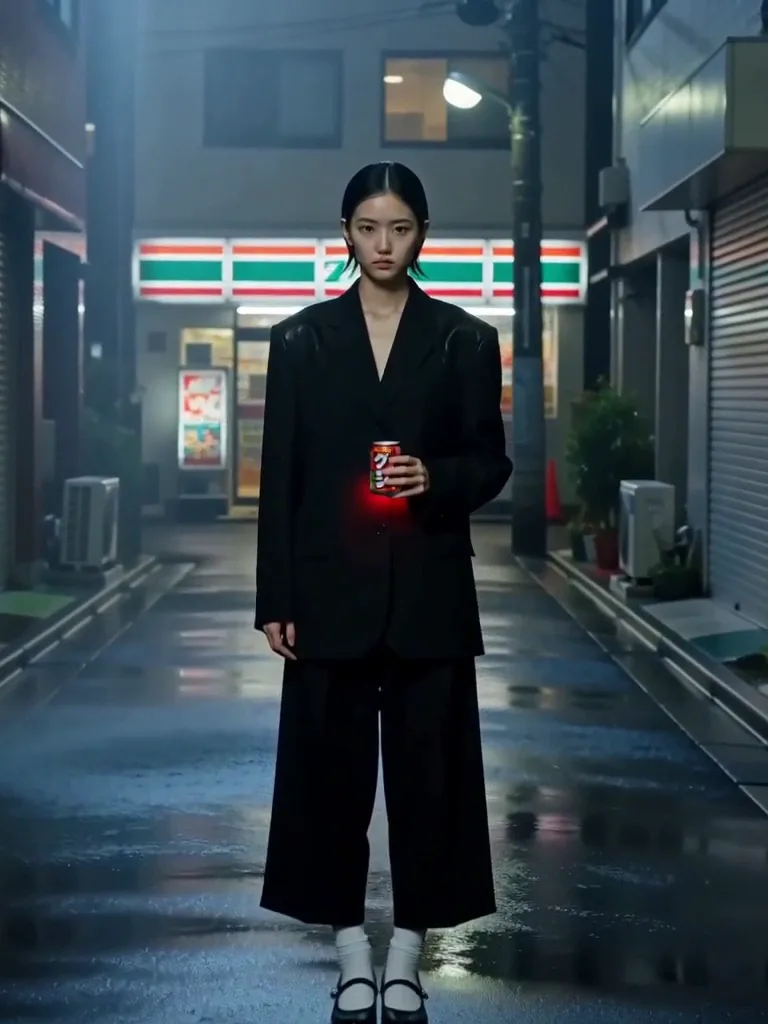
From a flat product shot to motion that sells
SnapVivid’s product video generator runs on the image-to-video engine: it takes a single still — a bottle, a gadget, a jar, a garment — and gives it believable motion: a rotation, a drifting highlight, a shallow-focus push-in. It is the fastest way to get scroll-stopping product motion from the photo you already have.
Animate your productStart from the photo you already have
A clean flat lay or a plain pack shot is all you need. Upload it and the image-to-video engine adds motion around your product while keeping the label, shape, and colors intact. Want a richer background first? Use the image tools to relight or place the product in a scene before you animate.

Composite it into a scene, then move it
Blend your product into a new setting with combine images — a beach, a marble counter, a studio backdrop — with matched lighting and reflections, then send that composite to the video engine for a hero shot. One product, many looks, no reshoot.
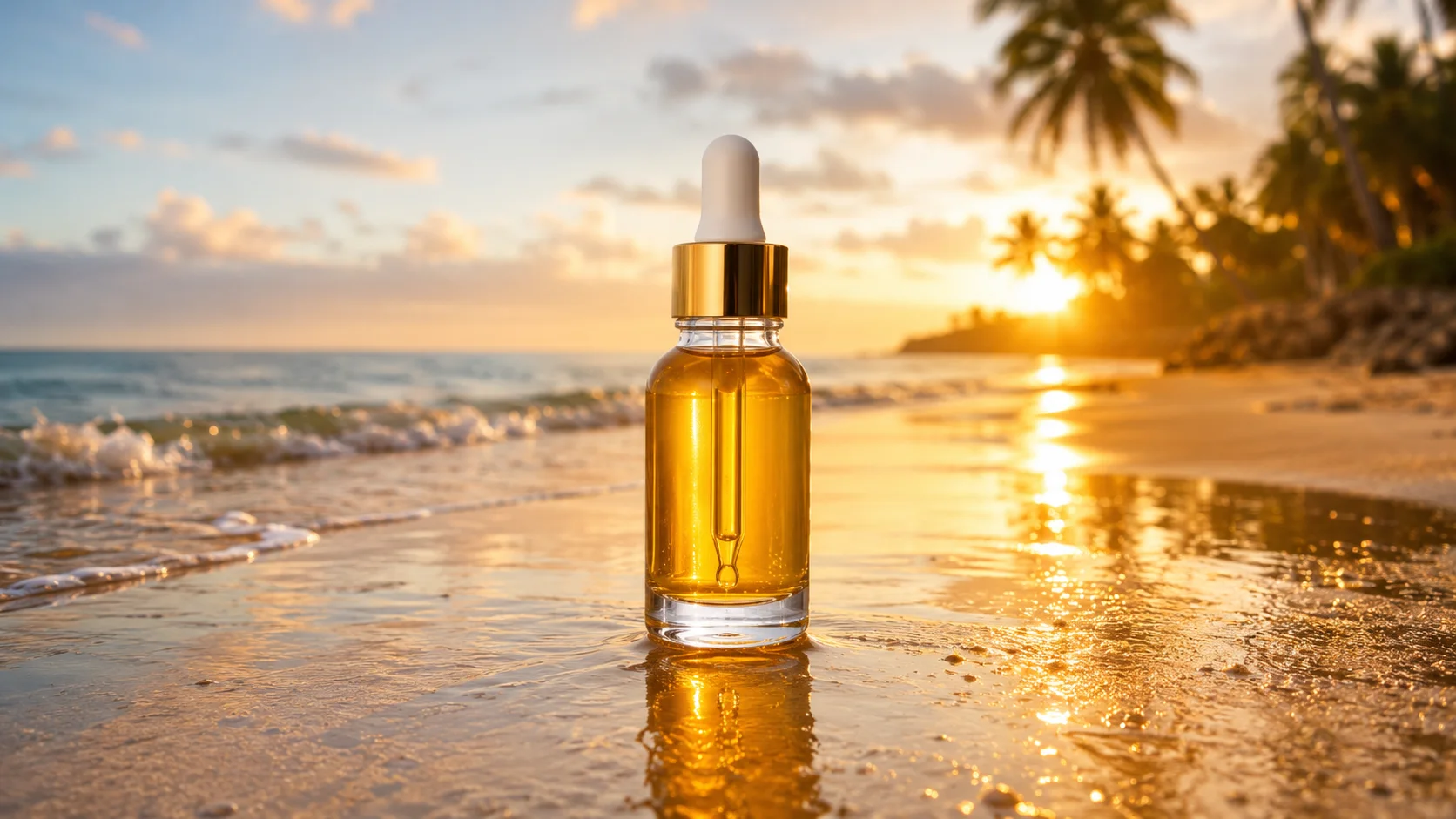
What the product video generator gives you
The real capabilities behind a SnapVivid product clip.
Photo-to-motion
Turn a single product still into a spin, light sweep, or push-in with the seedance-2 image-to-video model — the product stays on-brand and recognizable.
Scene compositing
Place your product into a new background with matched lighting using the image tools, then animate the composite. No physical set required.
Every social size
Render 9:16 for Reels and TikTok, 1:1 for feed, or 16:9 for YouTube and site heroes — pick the aspect before you generate.
How to make a product video
Three steps from a pack shot to a hero clip.
1 · Upload your product photo
Drop in a clean shot of the product. Optionally relight it or composite it into a scene with the image tools first.
2 · Generate the motion
Add a short motion prompt — spin, push-in, light sweep — choose an aspect ratio, and let the image-to-video engine render your hero shot in minutes.
3 · Export and post
Download the finished clip and drop it straight onto your product page, an email, or a social post. Re-run with a new motion for variations.
From a Prompt or a Photo to Finished Art
AI images, face swaps, headshots, and restyles — every tile is a real SnapVivid output. Hover to see it move, or click to open the tool.
Good to know
Honest answers about how the product video generator works on SnapVivid.
Does it keep my product accurate?
The image-to-video engine animates around your uploaded photo, so the product’s shape, label, and colors are preserved rather than re-imagined. For the most faithful result, start from a sharp, well-lit product shot — the clearer the input, the cleaner the motion.
Can it write ad copy or add a voiceover?
It does not write ad copy, and it does not auto-publish to Meta or TikTok Ads Manager. It can generate a spoken voiceover — on the separate AI Voiceover tool, as a file — but it is not added to the clip for you: the render comes back without an audio track and you export it and mix it wherever you like. Being upfront about that beats promising a button that does not exist.
What does it cost?
Generating and editing product stills uses the lifetime image credits. Rendering video is a paid feature on the Starter, Pro, or Ultra plans, since video takes more compute. Runs that fail are never charged, so you only pay for clips you actually get.
Product video vs. product photography
Need a still catalog image rather than motion? Start with the AI photo editor to relight and clean up the shot, then decide whether to animate it. Stills and video share the same canvas, so you can do both from one upload.
Give your product some motion
Upload a product photo and let the product video generator turn it into a hero video in minutes. Start from the composer above.
Start creatingExplore the creation toolkit
The tools behind the product workflow.
More ways to create
Other SnapVivid video use cases and guides.