AI Photo Editor
Edit any photo just by describing the change. Upload a picture, tell SnapVivid’s AI what to do — swap the background, remove an object, fix the lighting, or restyle the whole shot — and get a clean, download-ready result. When you need a focused edit, the specific tools are one click away.
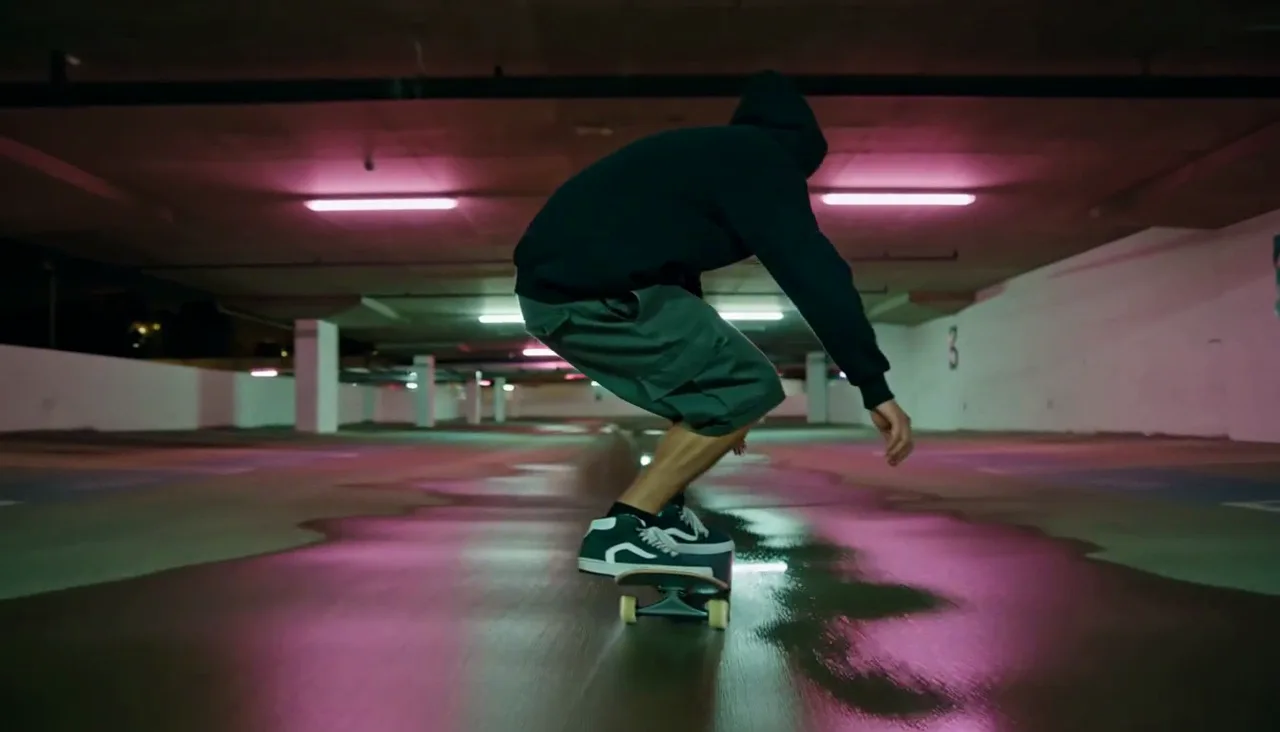
AI Photo Editor — real results, in minutes
An AI photo editor changes the basic contract of editing a picture. Instead of picking a tool, making a selection, and nudging sliders, you upload the photo and say what you want in a sentence. This online photo editor reads the image and the instruction together and re-renders just the part you asked about, so you edit photo with ai the way you’d describe the change to a person — “make the sky blue,” “remove the car,” “brighten her face” — and get it back done. It’s a photo editor that works in words.
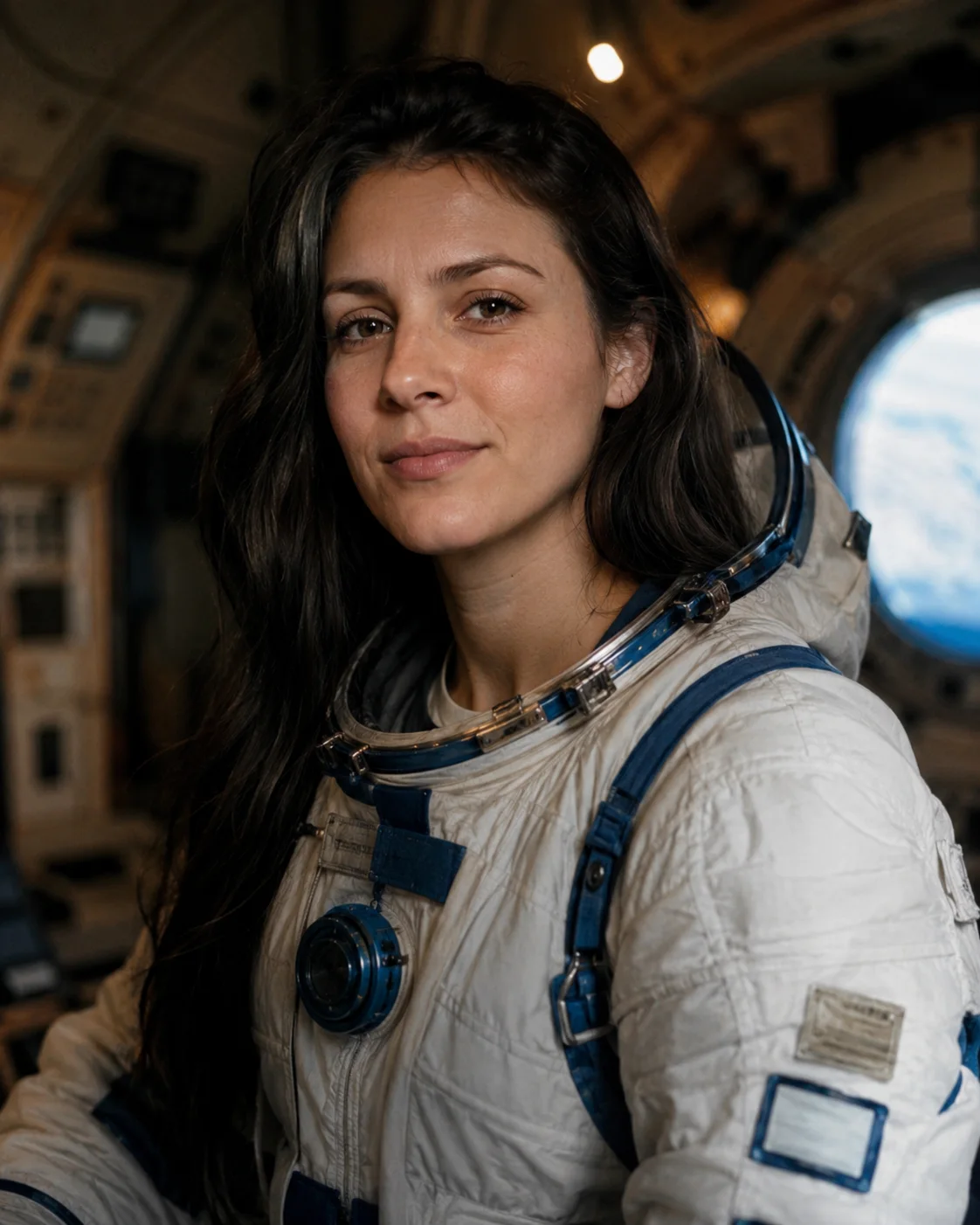
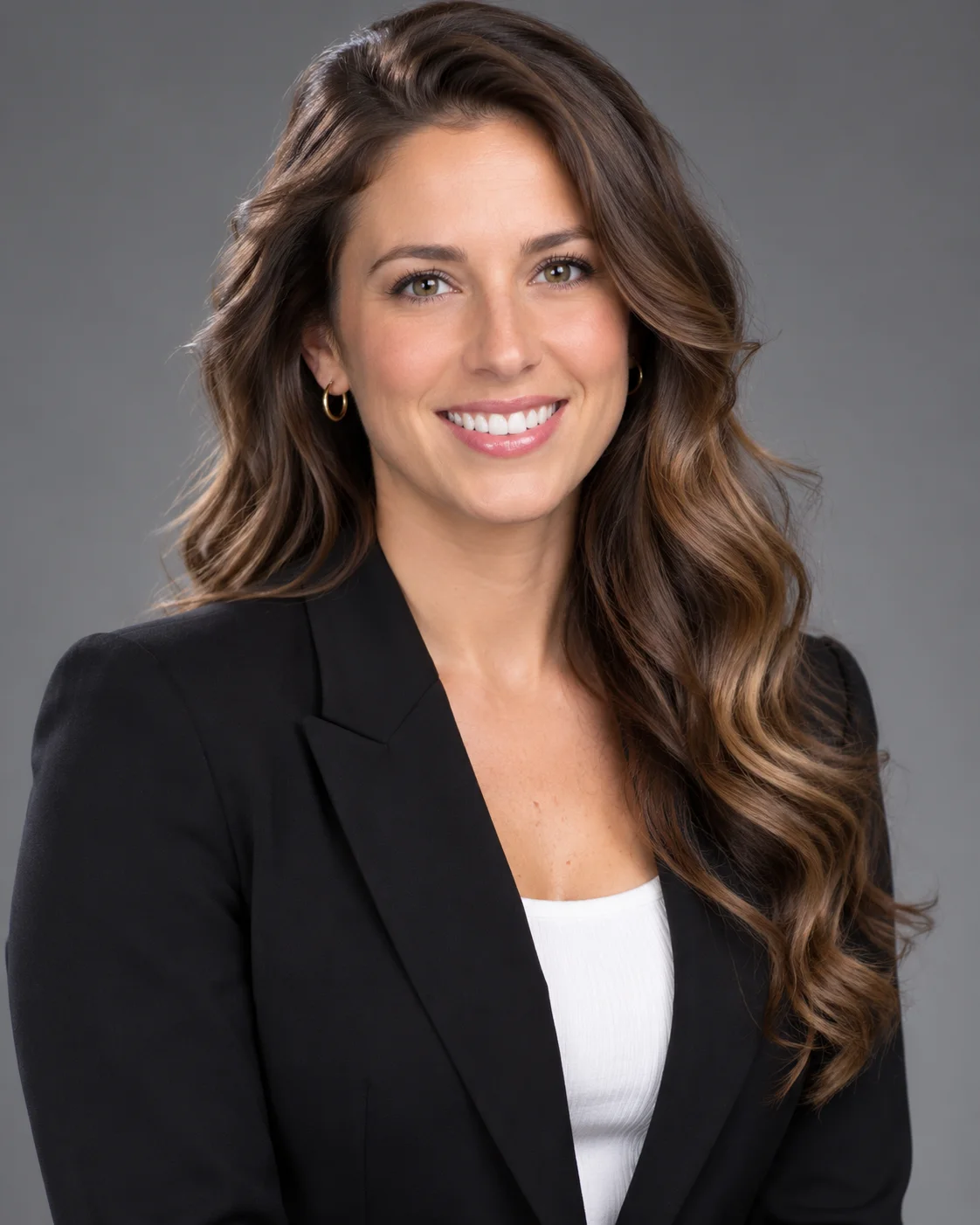
Start for FreePrompt: Cinematic close-up of a young woman softly smiling and turning her head toward camera, loose hair gently moving in a breeze, warm golden-hour light, shallow depth of field, subtle natural motion.
Why creators use AI Photo Editor
Everything ai photo editor gives you in one place.
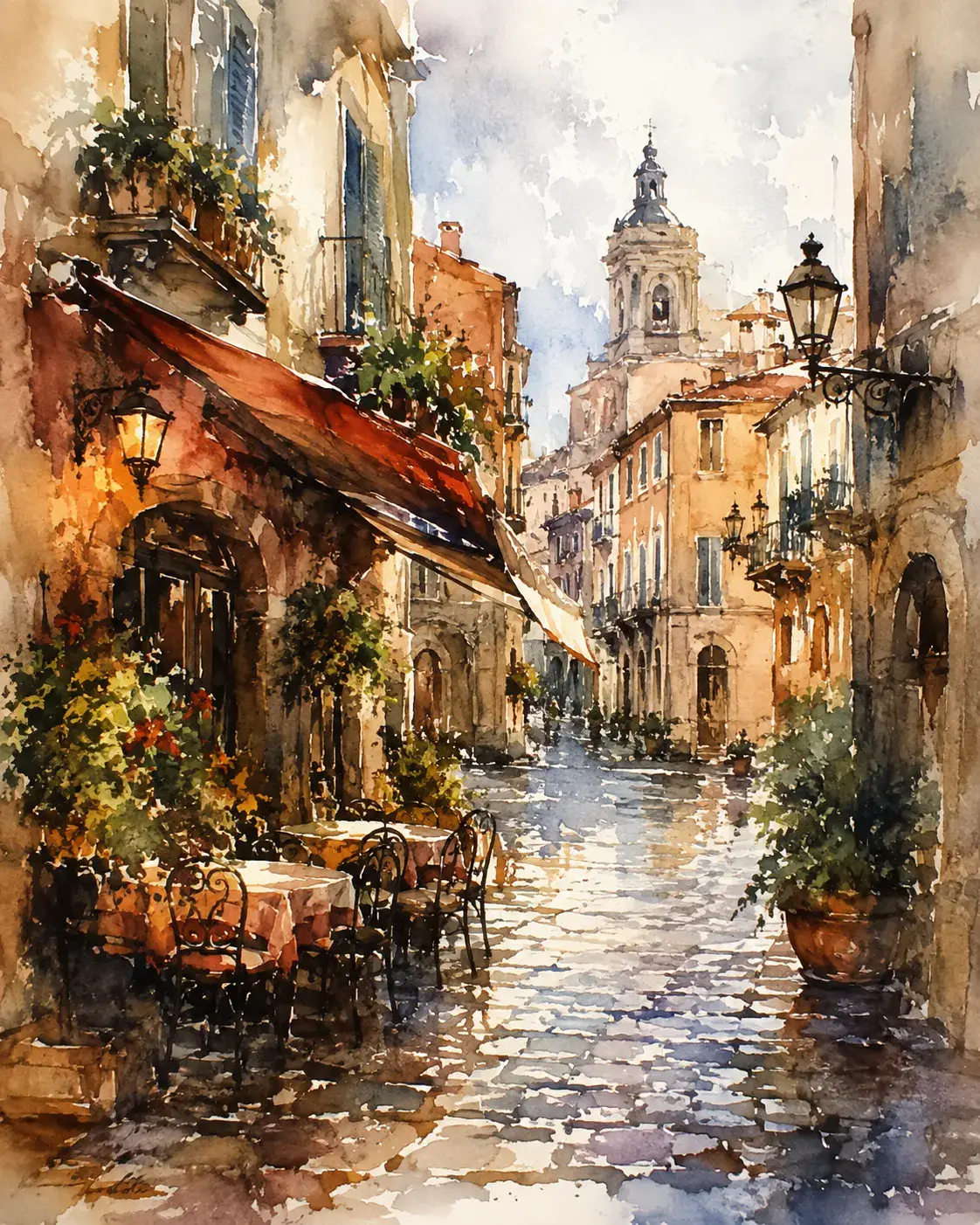
AI photo editing driven by a prompt, not a toolbar
Traditional editors make you learn a different tool for every change — masks, layers, selection brushes. This ai photo editor works the other way: you edit photo with ai by describing the result in plain language. Type “remove the sign, warm up the light, blur the background,” and the AI does it. It’s AI photo editing for people who know what they want, not which menu it’s buried under.
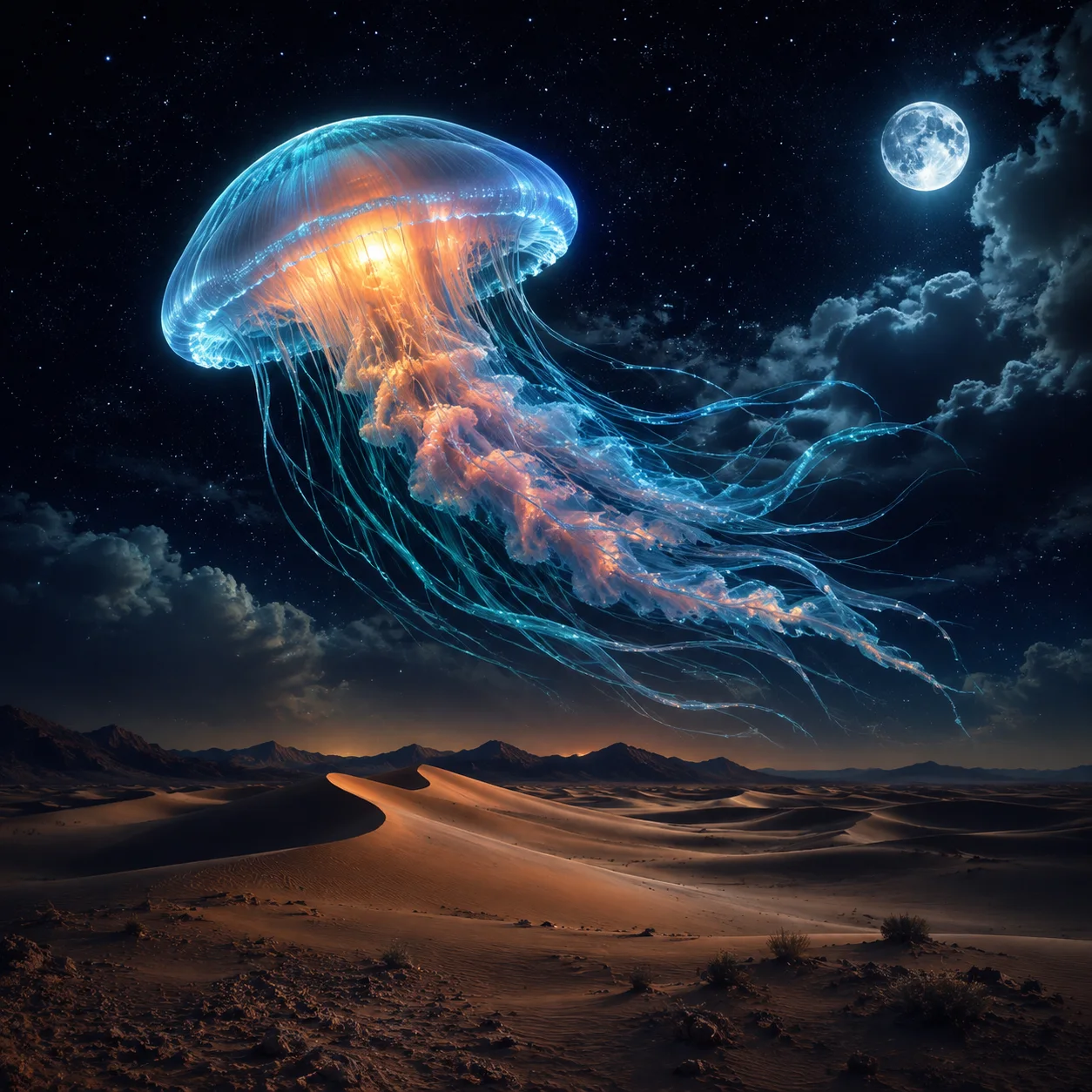
Change only what you ask — the rest stays untouched
The usual failure of an ai image editor is that one instruction quietly rewrites the whole picture — the face shifts, the colors drift, the composition moves. SnapVivid is tuned to make a targeted edit: it changes the region you named and preserves the subject’s identity, framing, and lighting everywhere else, so the result reads as your photo, edited — not a new image that vaguely resembles it.
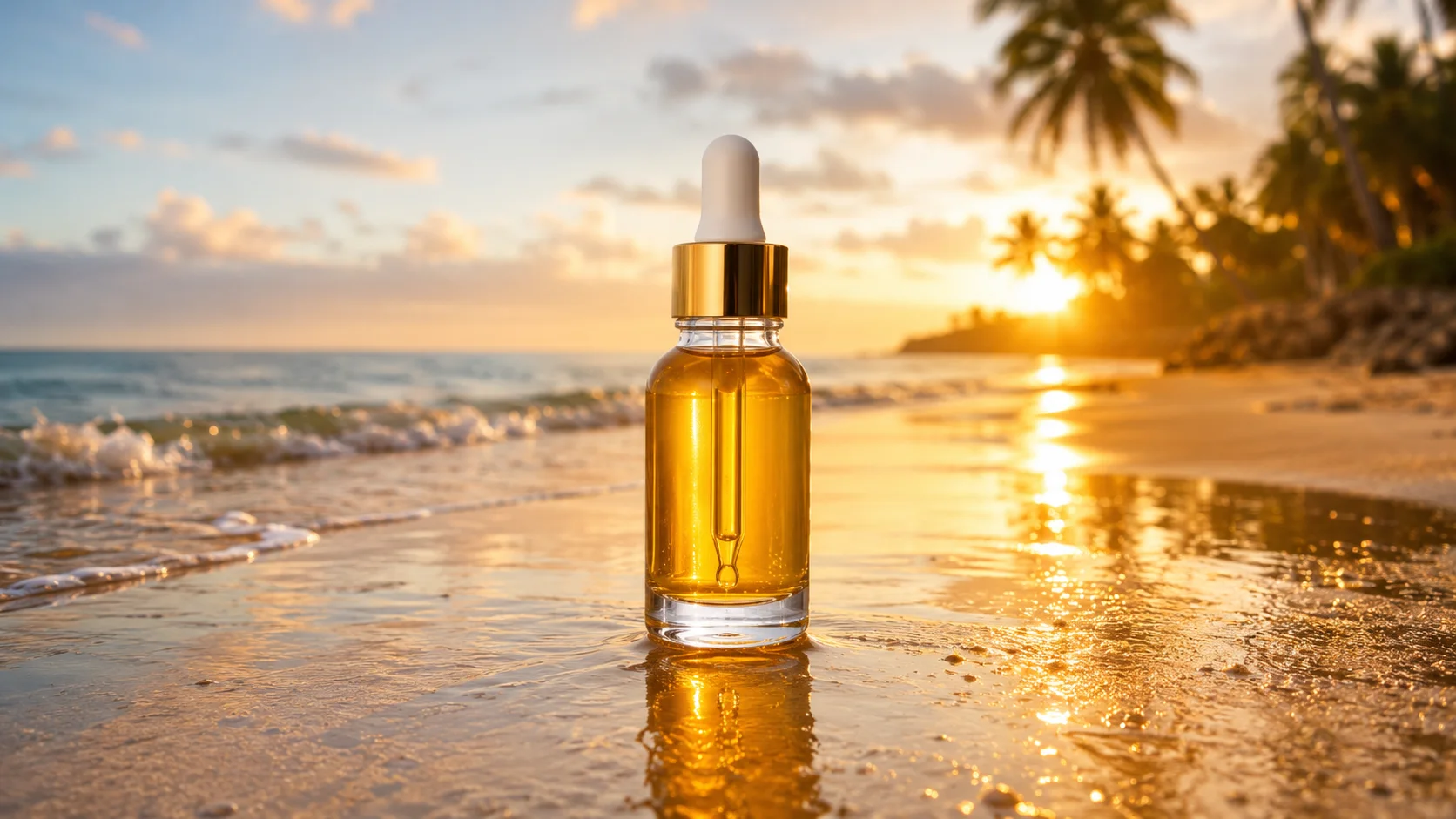
Every focused edit tool, one click away
SnapVivid works as a photo editor hub. When you want to edit image with prompt ai for a general change, do it right here. When the job is specific, branch to the dedicated tool: combine two photos, remove a watermark, upscale to print resolution, generate a studio headshot, or swap a face. The general ai picture editor and the focused photo editor tools share one account, one workflow, and the same 1 lifetime image credit.
Preview clean, download clean
Most free editors stamp a watermark across the preview or lock the export resolution until you pay. Here, previews carry no watermark and the result downloads at full quality. You get 1 lifetime image credit to try it, and failed edits never cost a credit.
How it works
Three steps from upload to a finished, download-ready result.
Upload your photo
Drop in the picture you want to change. It stays private to your session — nothing is posted to a public gallery.
Describe the edit
Write the change in plain language — “replace the background,” “remove the object,” “relight it warmer.” Leave the preset on to protect the parts you don’t mention, or add your own instruction.
Generate & download
Pick a model (or leave it on Auto) and generate. Preview the edited photo with no watermark, refine the prompt if it isn’t right, and download the final image.
Made with SnapVivid
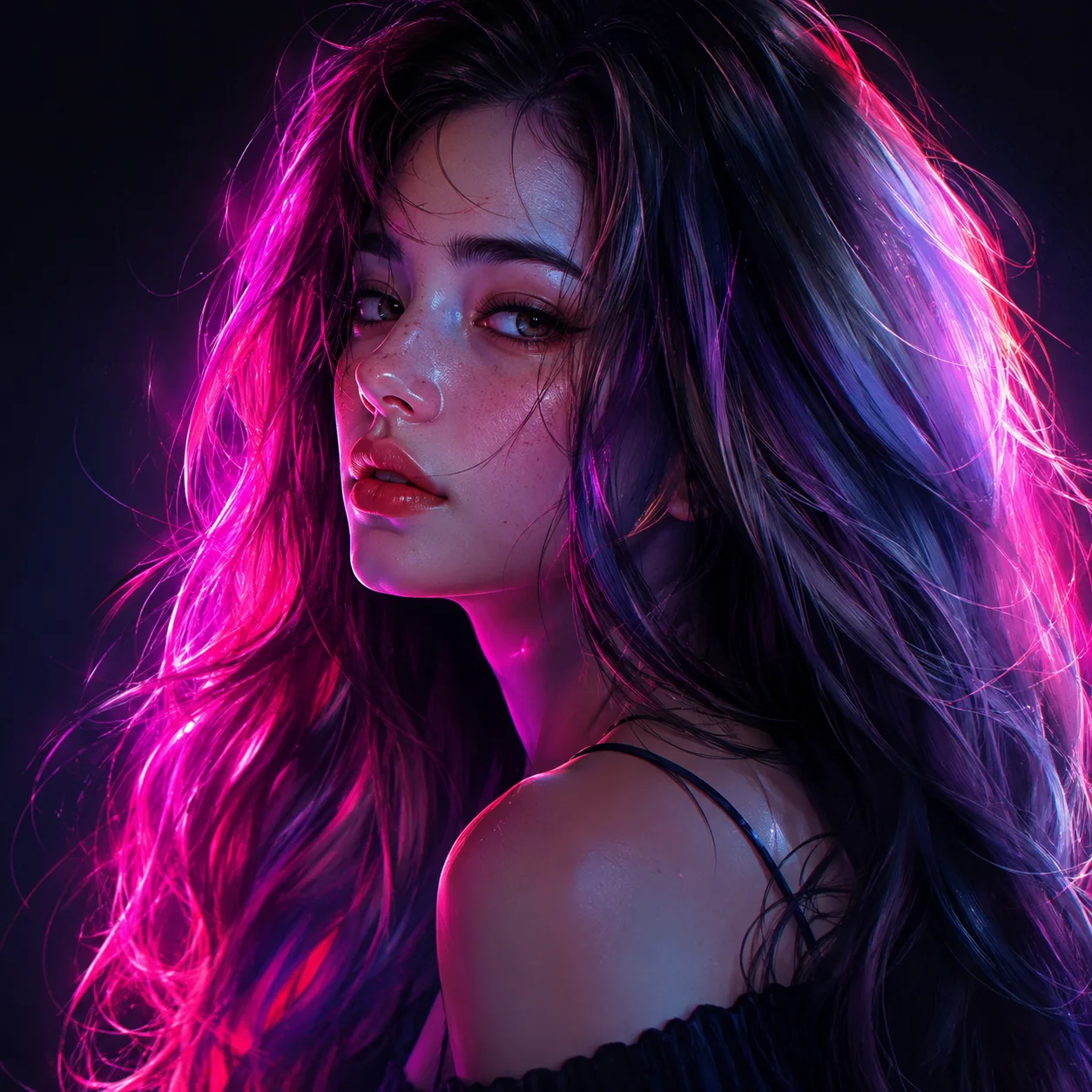
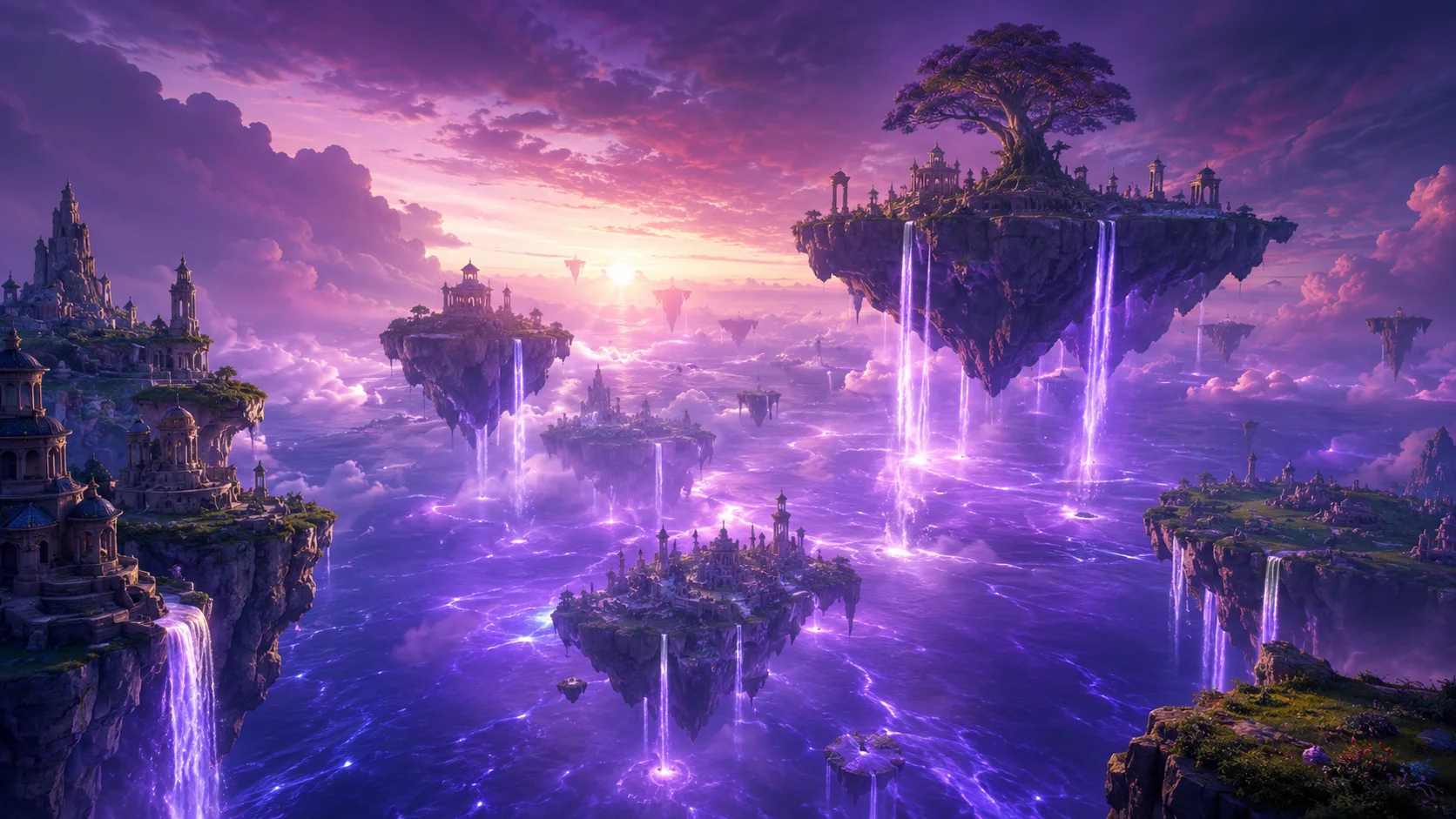
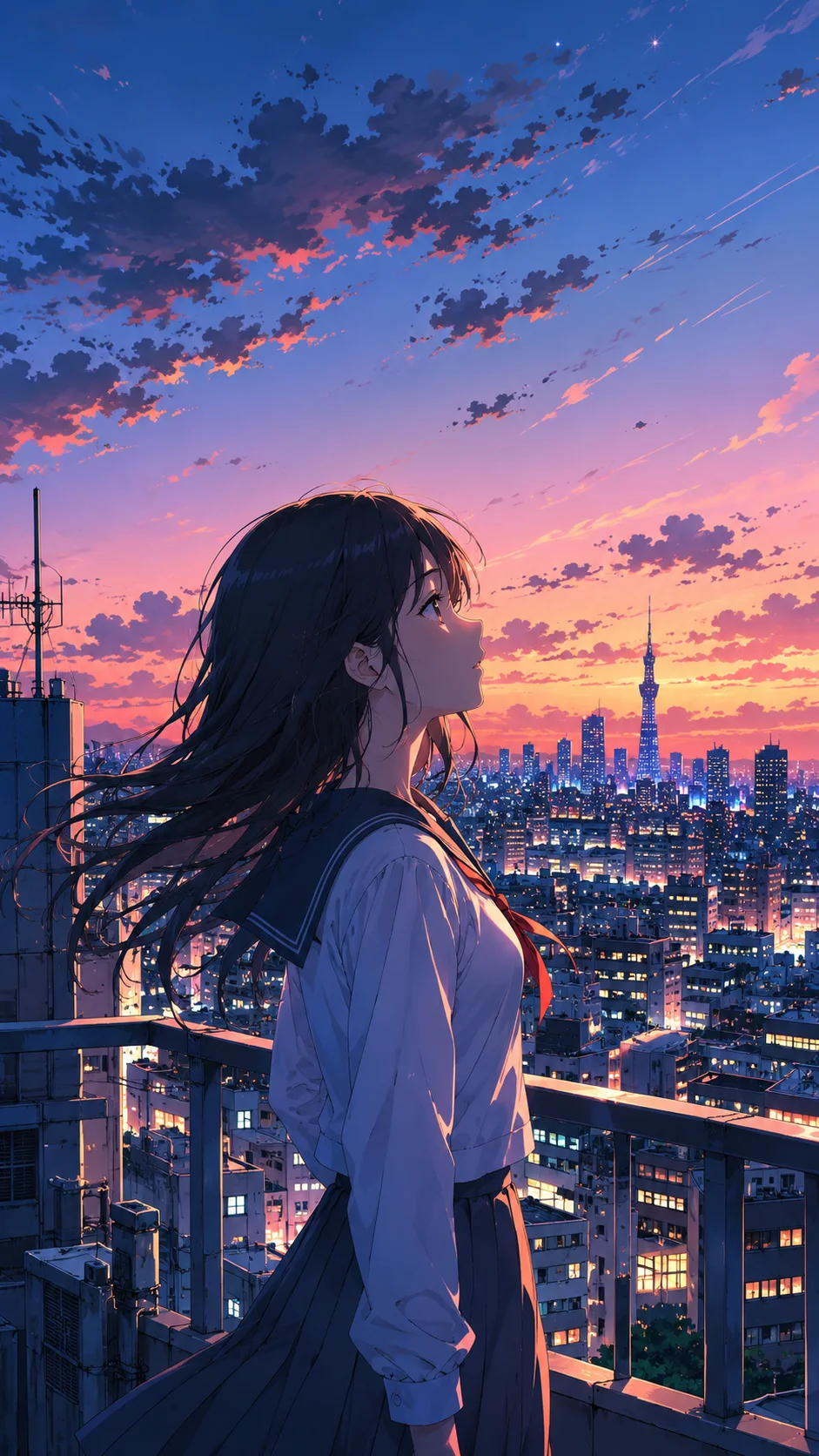
Real results — ai photo editor across styles and subjects.
AI Photo Editor — free to start
1 lifetime image credit, no card required. Video runs on a paid plan from $29/month.
Start for FreeWhat you can do with it
The everyday edits people hand to the editor instead of opening a desktop app.
Change or replace the background
Swap a messy backdrop for a clean studio, a new location, or a solid color — with matched lighting and shadow so the subject still belongs in the frame.
Remove or clean up objects
Delete photobombers, signs, blemishes, or clutter and let the AI rebuild what was behind them, instead of leaving a smear or a clone-stamp patch.
Restyle, relight, and recolor
Give a photo a new mood — golden-hour light, a cinematic grade, a season change, or a fresh color on one element — while keeping the shot recognizable.
Add or swap elements
Add a reflection, change a shirt color, or replace a small element with a plain-language instruction — a full ai photo editing pass without opening Photoshop.
More about AI Photo Editor
What separates a good ai image editor from a frustrating one is restraint. A weak model treats every prompt as a license to redraw the whole frame, and you lose the very thing you were trying to keep. SnapVivid’s AI photo editing is tuned to hold the rest of the picture steady — the subject’s identity, the composition, the light — and change only the region you named. That control is what makes an edit usable: it’s still your photograph, just fixed.
Because you edit image with prompt ai, the learning curve mostly disappears. There’s no masking, no layer stack, no history of tools to memorize. If the first pass isn’t right, you don’t undo a chain of steps — you just refine the sentence: “keep more of the original background,” “make the change subtler,” “match the warm tone.” Failed generations never cost a credit, and you see the cost of each edit before you run it.
This page is the hub for prompt-driven editing on SnapVivid, and the photo editor is deliberately close to the focused tools. Use the general photo editor for one-off changes; jump to a dedicated tool when the job is specific — combine two images into one, remove a watermark and rebuild what was under it, upscale a photo to print resolution, turn a selfie into a studio headshot, or swap a face. It’s the same studio and the same 1 lifetime image credit, whether you want broad AI photo editing or a single precise operation.
Everything runs in the browser, with your uploads kept private to your session and your results downloadable at full quality with no watermark. Start with the 1 lifetime image credit, and upgrade only when you need more volume or want to move into video. From a rough shot to a finished, download-ready image, the whole loop — upload, describe, generate, download — is one screen.
Related tools
More SnapVivid tools that pair with ai photo editor.
Combine Images
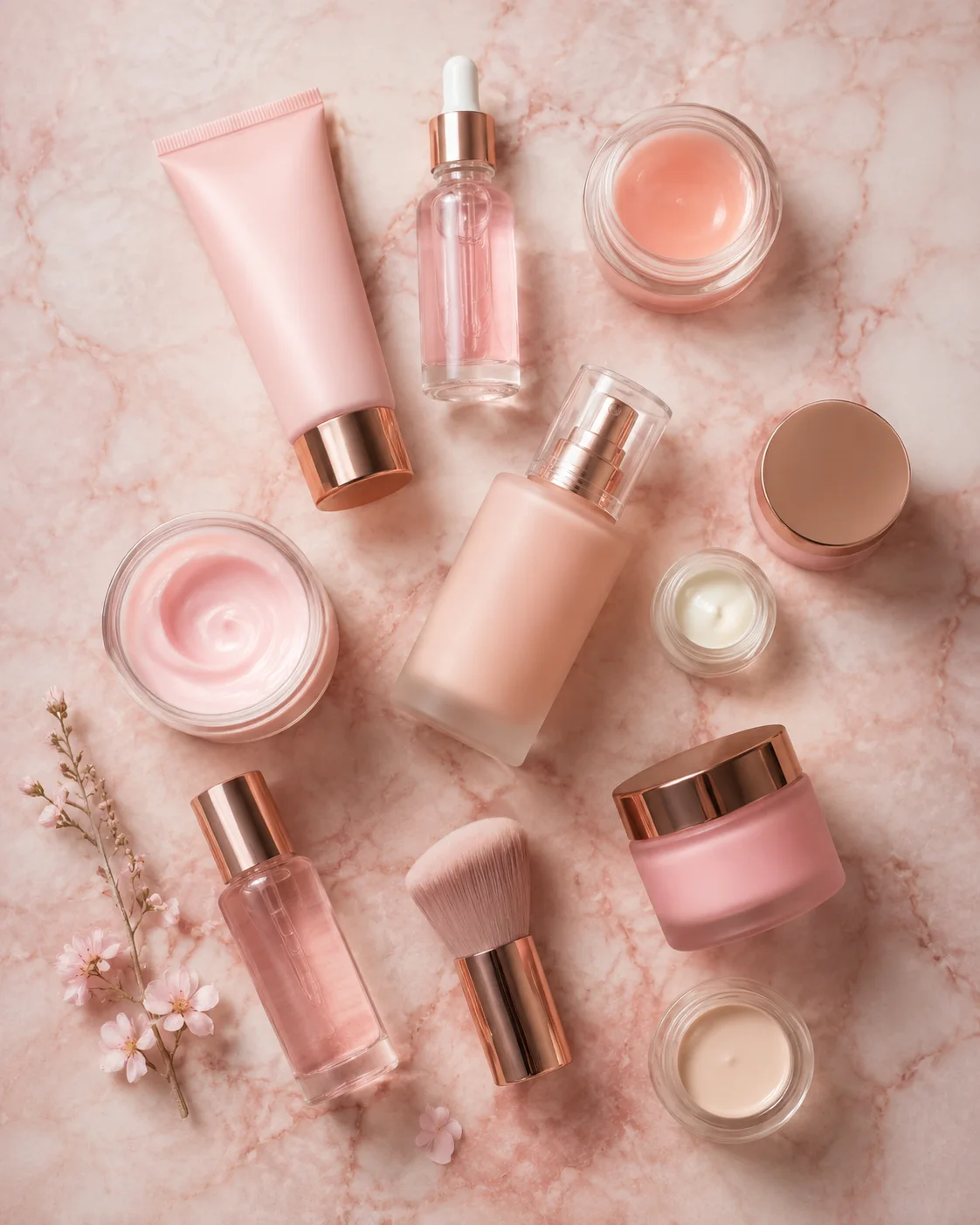
Combine images into one natural, believable photo — no Photoshop layers, no masking. Upload two pictures (or more), describe how to merge them, and SnapVivid blends the photos together with matched lighting, scale, and perspective.
AI Watermark Remover — Remove Watermark from Image
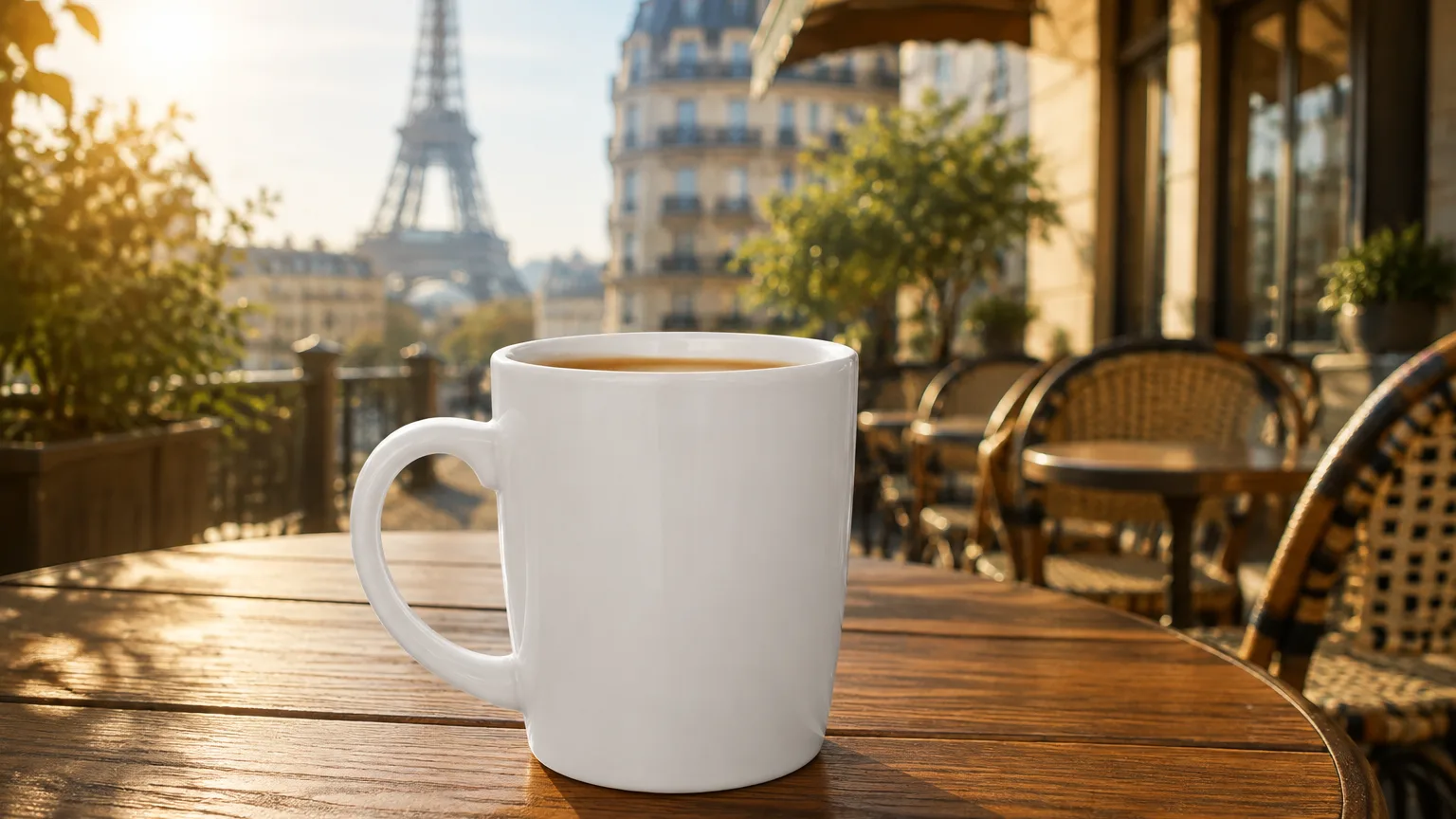
A watermark remover that actually rebuilds the photo. Upload an image you own, and SnapVivid’s AI watermark remover deletes the watermark, logo, or text overlay and reconstructs the detail underneath — so the result reads as a clean original, not a blurred-over patch.
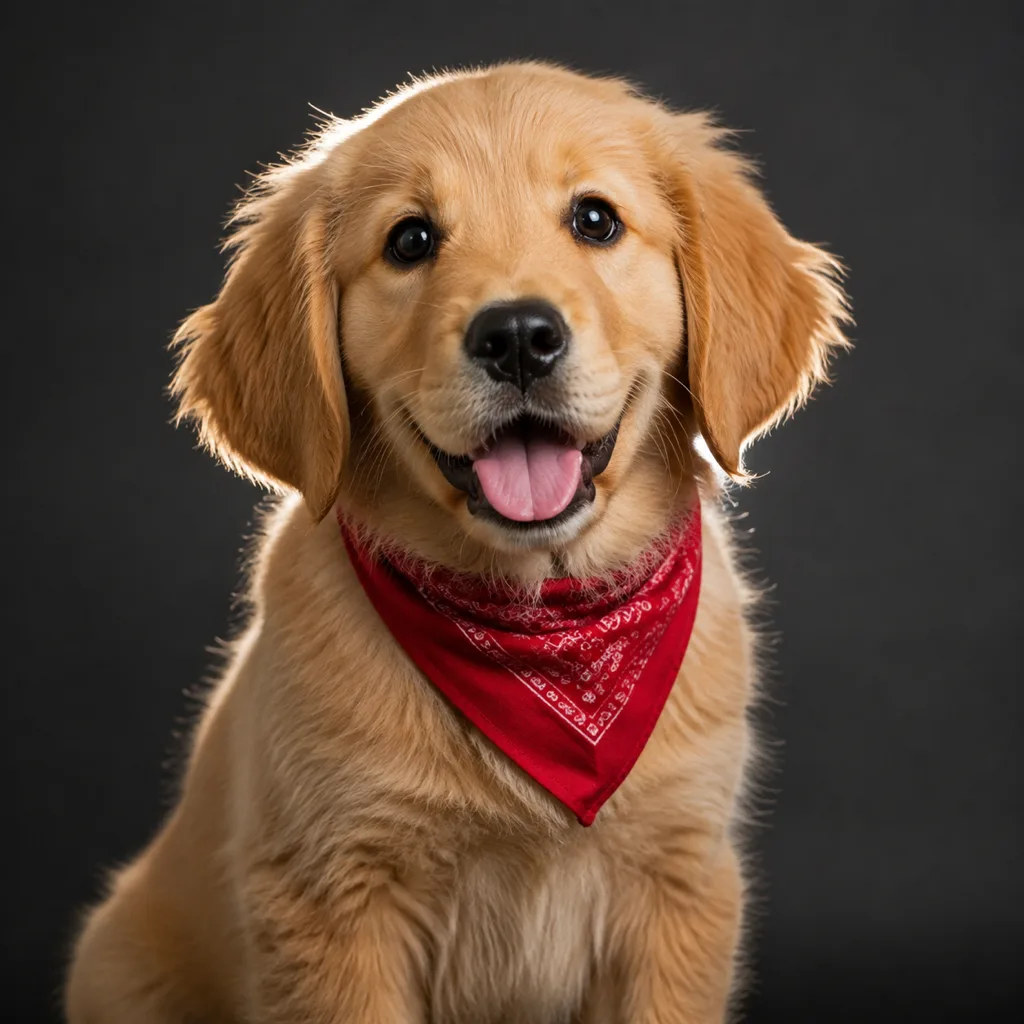
AI Photo Restoration
Bring an old, damaged, or faded photo back to life. Upload a scratched print, a yellowed snapshot, or a soft black-and-white photo, and SnapVivid’s AI repairs the damage, corrects the color, and recovers detail — while keeping every face true to the original person, not a stranger who resembles them.
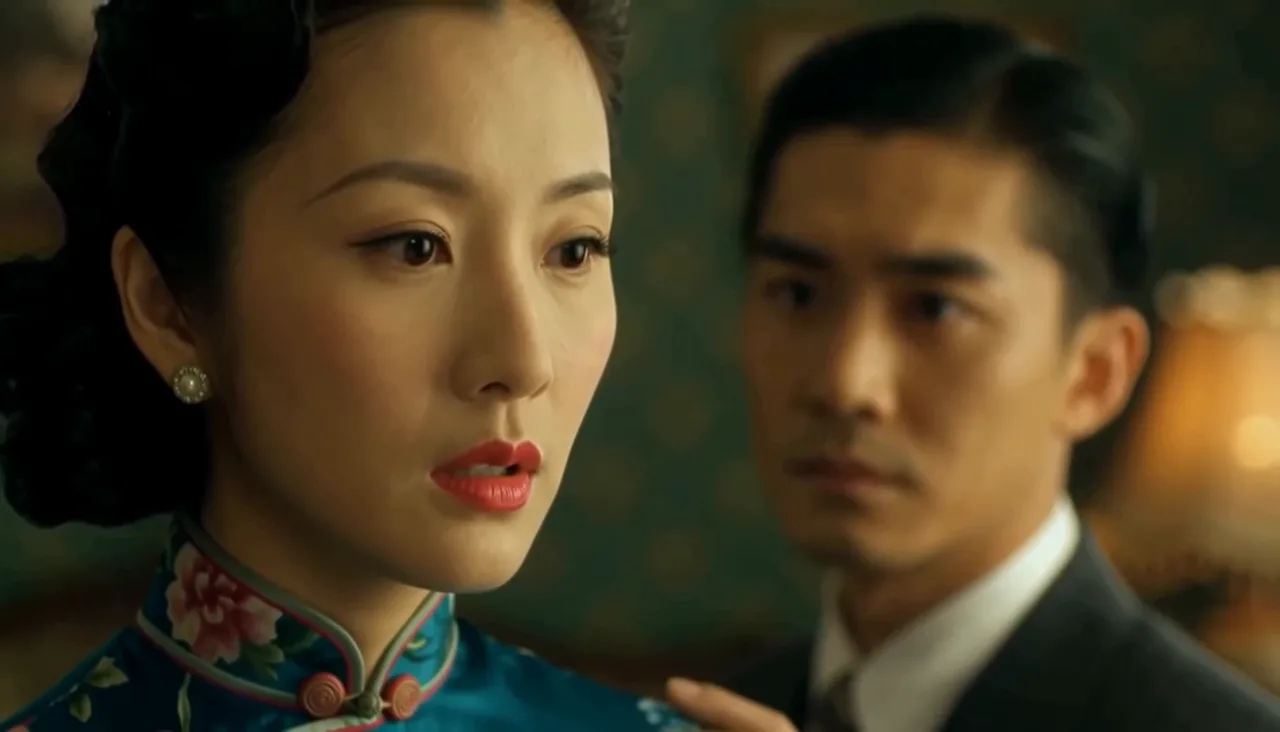
AI Image Upscaler
Enlarge and sharpen any image without the blur. SnapVivid’s AI upscaler adds real detail as it scales your photo 2× or 4× — cleaning up noise and softness so small or low-res pictures become crisp and print-ready.
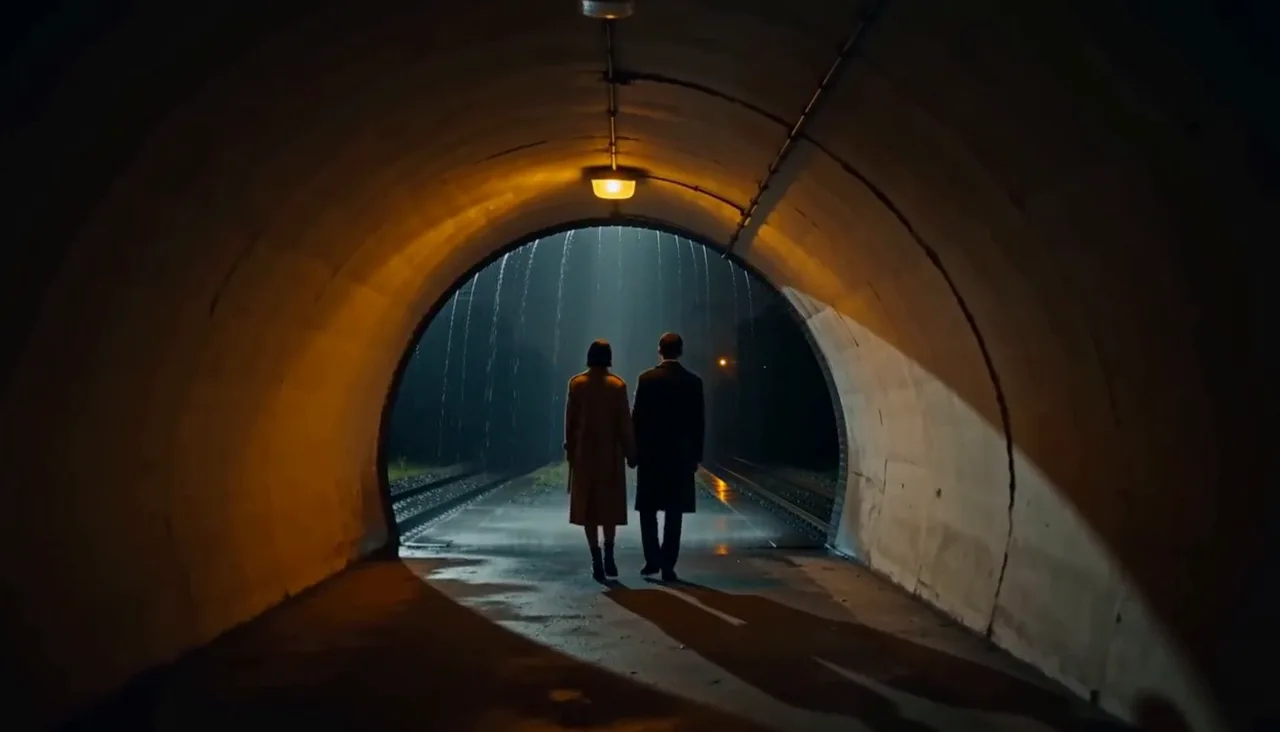
AI Headshot Generator
Turn an everyday selfie into a professional, studio-quality headshot. Upload one clear photo, choose a look — corporate, LinkedIn, creative, or outdoor — and SnapVivid generates a polished portrait ready for your profile.
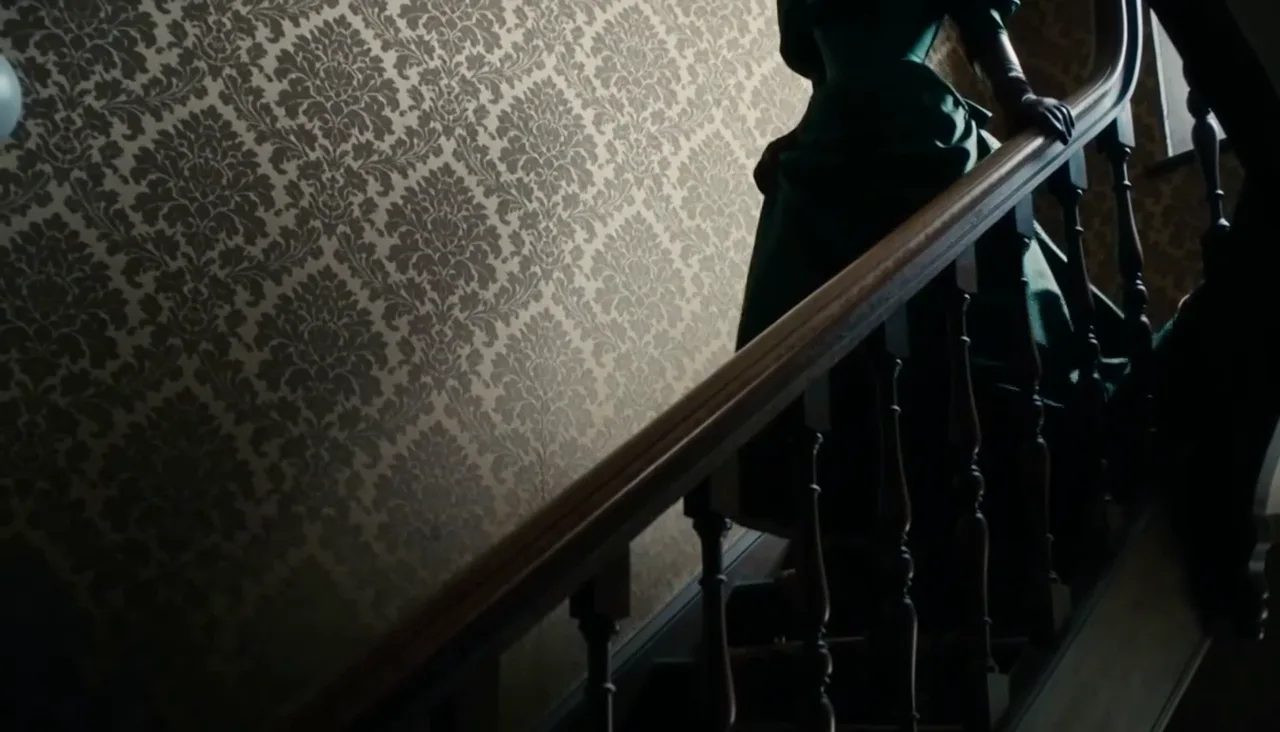
Face Swap
Swap a face into any photo in seconds. Upload a base picture and the face you want, and SnapVivid blends them naturally — matched skin tone, lighting, and angle, with realistic, download-ready results.
AI Image Generator
Generate and edit images in any style.
Frames to Video
Turn still frames into a moving clip — with real control over where the motion starts and ends. Drop in a first frame, add an optional last frame, and SnapVivid’s AI generates the in-between motion into a short, download-ready video. Not a slot-machine single-image animate: you direct both ends of the shot.