AI Social Media Video Maker
The feed wants something new every day and the camera cannot keep up. Turn stills into vertical motion clips in minutes, framed for Reels, TikTok and Shorts from the first frame.
A posting cadence you can actually sustain
Short-form rewards frequency, and frequency breaks teams. SnapVivid’s image-to-video engine turns any still — a product, a portrait, a scene you generated ten seconds ago — into a short vertical clip, so the day you have nothing to film is not a day you post nothing. That is what AI video for social media should do: keep the cadence up without a daily shoot.
Make a vertical clipVertical from the first frame
Choose 9:16 before you generate and the video studio composes for that frame instead of cropping a landscape render down to it. Your subject stays centered, the motion stays in frame, and nothing important lives under the caption bar.
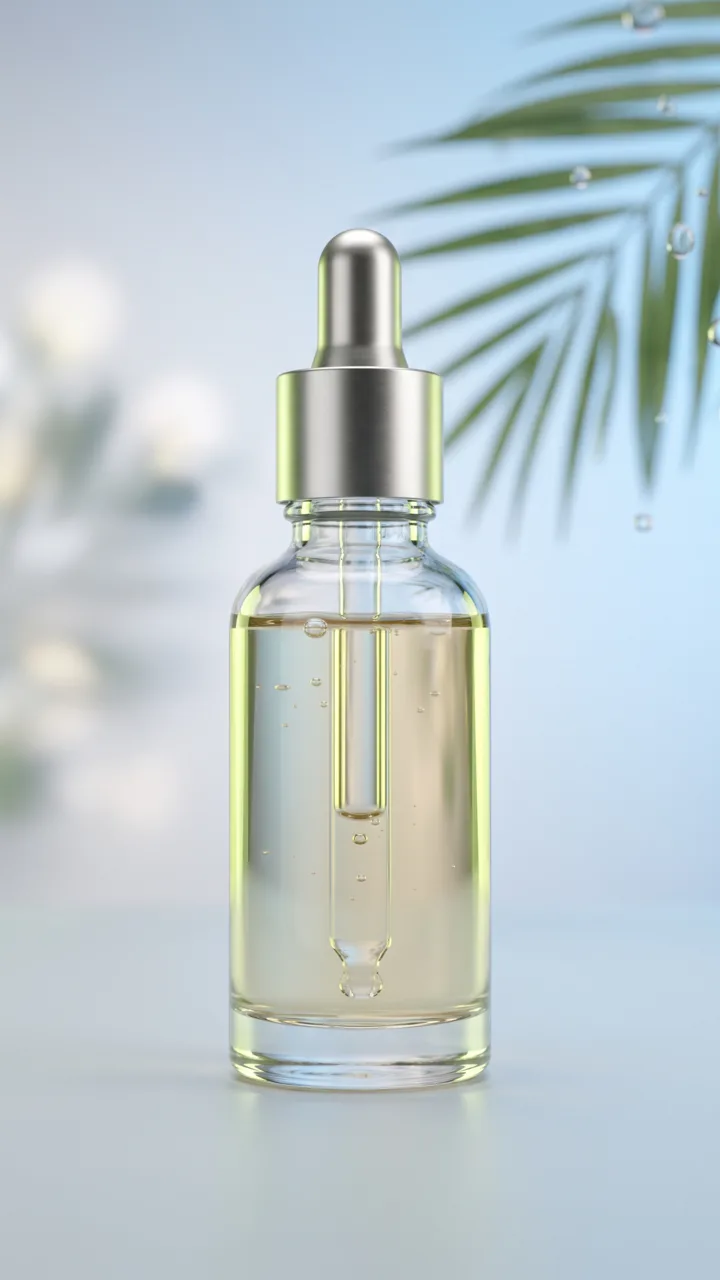
No shot today? Generate one
When the camera roll is empty, make the still first in the image studio — a scene, a flat lay, a stylized portrait — and animate it without leaving the app. Idea to posted clip stays inside one session.
What a social team gets
The real capabilities behind AI video for social media on SnapVivid.
Photo to short-form clip
Turn any still into a few seconds of natural motion — enough to stop a scroll and carry a hook.
Stills on demand
Generate and edit source images in the image studio when there is nothing new to shoot, then animate them immediately.
Native to each surface
9:16 for Reels, TikTok and Shorts, 4:5 and 1:1 for feed, 16:9 for YouTube — chosen before the render, not cropped after.
How social teams use SnapVivid
Three steps from an idea to a posted clip.
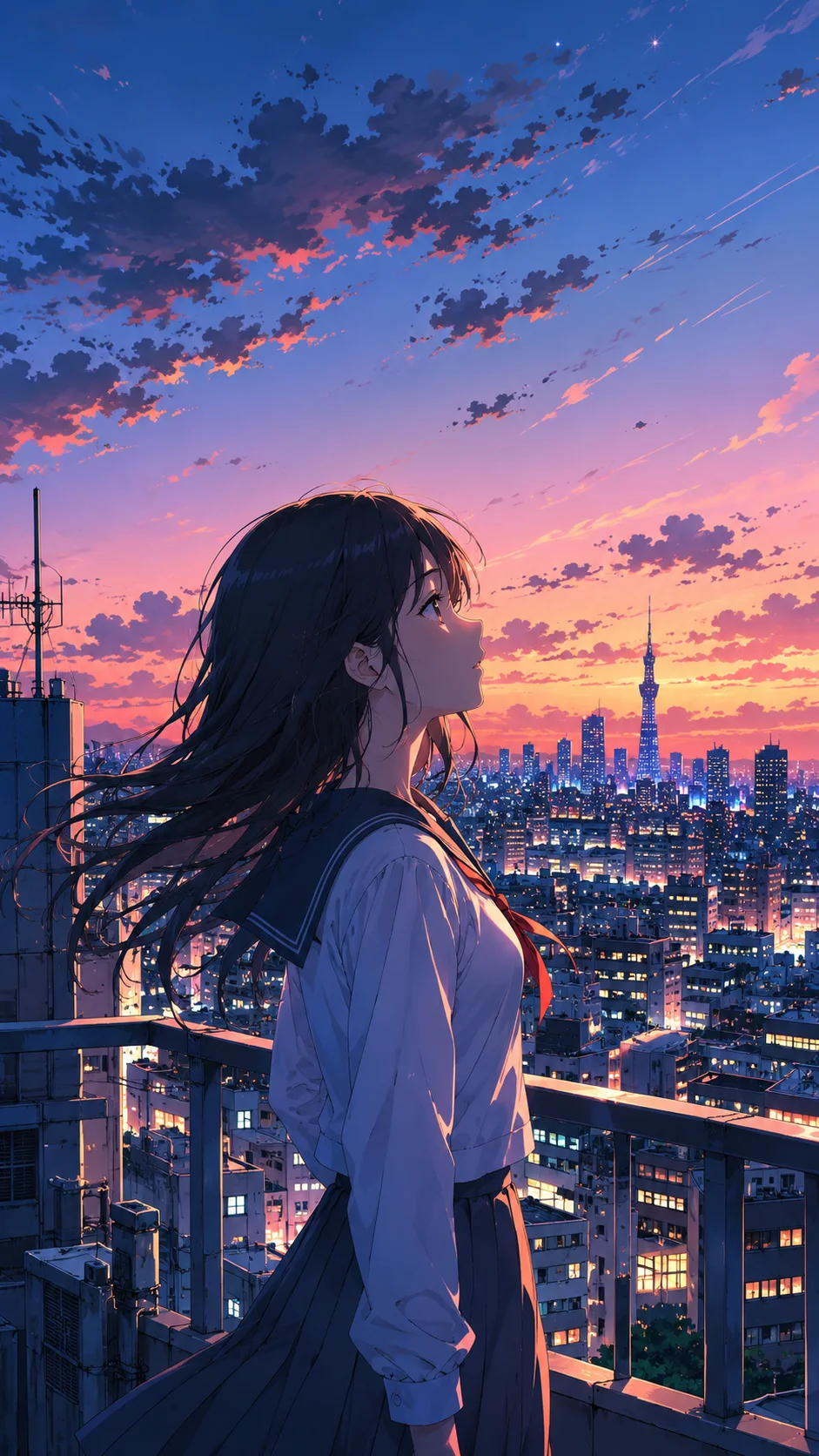
1 · Get the still
Use a photo you have, or generate one in the image studio in the style the post needs.
2 · Add motion, pick the frame
Describe the movement in a line, choose 9:16 or 4:5, and render the clip.
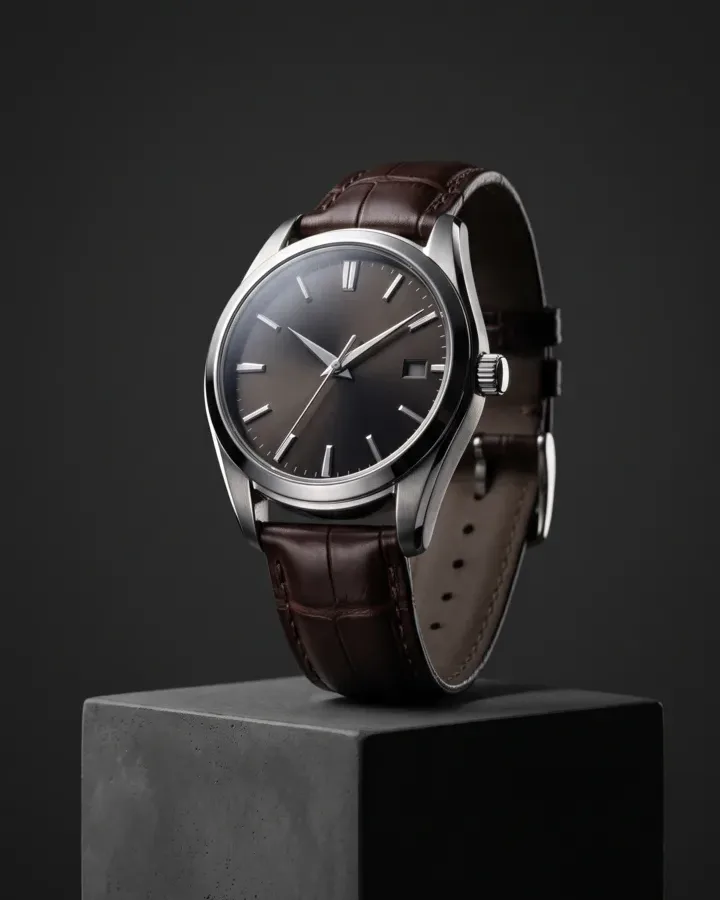
3 · Caption and post
Download the clip — it renders without an audio track — and finish it in your editor with text, cuts and the music or voiceover you generated here. Then post it yourself; SnapVivid does not publish for you.
From a Prompt or a Photo to Finished Art
AI images, face swaps, headshots, and restyles — every tile is a real SnapVivid output. Hover to see it move, or click to open the tool.
Good to know
What this replaces, and what it definitely does not.
Can it schedule or auto-post to my accounts?
No. SnapVivid has no scheduler, no platform connections, and no analytics. It is a creative tool, not a social management suite — you download the clip and post it through whatever you already use. That seam is real, and pretending otherwise would only cost you a planning cycle.
Does it write captions, hashtags, or hooks?
No. Copy, captions and hashtags come from you. Clips also export without an audio track, so plan on adding sound in your editor or in-app — though the voiceover, effects and music can be generated here first, on their own tools.
How long are the clips?
Short — a few seconds of generated motion per render, which is what a hook, a transition or a b-roll cut needs. For a longer piece, generate several clips and cut them together in your own editor rather than expecting one long take.
What can I do on the free plan?
Image generation and editing run on a free lifetime image credits, so you can build a whole library of source stills at no cost. Video rendering is a paid feature — see pricing — and failed renders are never charged.
Post something tomorrow without filming today
Take one still, add motion, export vertical — AI video for social media from the photo you already have. Start from the composer above.
Start creating freeTools behind short-form creative
The surfaces this workflow runs on.
More ways to use SnapVivid
Other audiences and use cases.