Frames to Video
Turn still frames into a moving clip — with real control over where the motion starts and ends. Drop in a first frame, add an optional last frame, and SnapVivid’s AI generates the in-between motion into a short, download-ready video. Not a slot-machine single-image animate: you direct both ends of the shot.
Frames to Video — real results, in minutes
Turning frames to video used to mean keyframing by hand in a motion editor — placing a start pose, an end pose, and tuning every in-between until the movement looked natural. SnapVivid collapses that into an upload: give it a first frame and an optional last frame, describe the motion, and the AI generates the clip between them. Because you control both ends, you get the thing single-image animators can’t give you — a shot that starts where you want and lands exactly where you want.
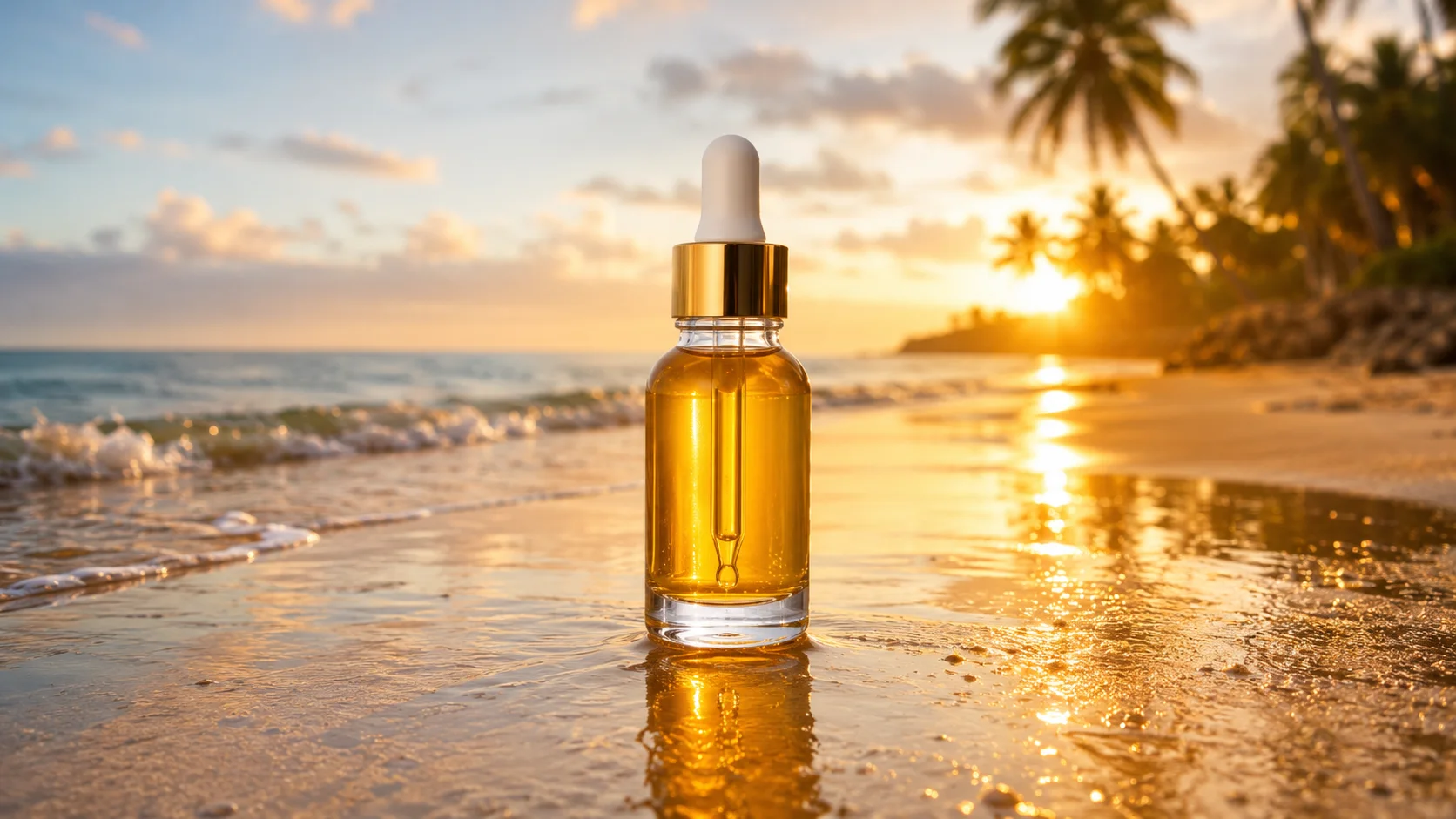
Get StartedPrompt: Timelapse-feel of ocean waves rolling onto a golden beach at sunset, gentle foam, drifting clouds, warm orange sky, serene cinematic motion.
Why creators use Frames to Video
Everything frames to video gives you in one place.
First frame to video — and a last frame that actually sticks
Most image-to-video tools take a single image and guess where the motion goes. Frames to video is built the other way around: set the first frame to video from, then add a last frame to video toward, and the AI interpolates the motion so the clip lands exactly on the pose you chose. Explicit start and end frame video control is rare and usually buried — here it’s the whole point of the tool.
Believable in-between movement
Naive frame interpolation looks like a crossfade — two pictures dissolving into each other. SnapVivid’s frame interpolation video ai reads both keyframes and renders genuine in-between motion: a camera move, a turn, a change of pose, with matched light and perspective the whole way through. The result reads as one continuous shot, not a fade between two stills.
Skip the last frame for a simple animate
The last frame is optional. Upload only a first frame and the clip grows out of it on its own — a slow push-in, drifting light, small natural movement — while holding the composition you started with. Add an end frame whenever you want to pin down exactly where the motion lands.
Set the length and resolution before you spend
Choose a 5, 8, or 10-second clip (longer on models that allow it) and draft at 480p or 720p to check the motion, then render the final at 1080p when the model supports it. The Generate button shows the credit cost before anything runs, and failed takes are refunded, so you only pay for a full render once the in-between looks right.
How it works
Three steps from upload to a finished, download-ready result.
Upload your frames
Drop in the first frame, then an optional last frame. Turn image frames to video from one keyframe for a simple animate, or two for full start-to-end control. Your images stay private to your session.
Confirm the start frame
Review the start frame before you spend any video credits — a cheap checkpoint before the expensive generate step. Then describe the motion between the frames in plain language.
Generate & download
Pick a model (or leave it on Auto), set duration and aspect ratio, and generate. Preview the clip, refine the prompt if the motion isn’t right, and download your video.
Made with SnapVivid
Real results — frames to video across styles and subjects.
Frames to Video — start in your browser
1 lifetime image credit, no card required. Video runs on a paid plan from $29/month.
Get StartedWhat you can do with it
When you already know how a shot should start and end, here is what you can build around those frames.
Keyframe a precise shot
When you know exactly how a shot should begin and end, set both frames and let the AI fill the motion — ideal for product turns, reveals, and controlled camera moves.
Animate a single still
Only have one image? Use first frame to video mode to bring a photo to life with subtle, believable motion — drifting light, a gentle push-in, small subject movement.
Smooth transitions between scenes
Give a start and end frame video pair from two different scenes and get a continuous, morph-free transition instead of a hard cut.
Loops and product demos
Turn image frames to video for short social loops, e-commerce demos, and animated concept boards — clean clips ready to post or drop into an edit.

More about Frames to Video
The difference between a real result and a cheap one is the in-between. Basic frame interpolation just crossfades two images, so the “motion” is really a dissolve. SnapVivid’s frame interpolation video ai instead reads the geometry and lighting of both keyframes and renders believable movement across them — a camera that travels, a subject that turns, a product that rotates — keeping light, scale, and perspective consistent from the first frame to the last. That’s what separates start and end frame video from a slideshow with a fade.
The whole flow is built to respect video credits. Video generation is the expensive step, so frames to video puts a cheap gate first: you confirm the start frame before anything is generated, then spend credits only on the motion. Set duration and aspect ratio, choose a model — Seedance 2.0 powers the default engine, with more models rolling out behind a simple routing menu — and generate. Failed takes don’t cost you a credit; you keep the clip you download, and preview results carry no watermark.
You stay in control of the output, not just the input. Pick a clip length — 5, 8, or 10 seconds — and an aspect ratio that fits where the video is going: 16:9 for landscape, 9:16 for stories and reels, or 1:1 for square feeds. Resolution scales from a quick 480p draft up to sharp 720p and 1080p finals (what each model can render is greyed in or out in the menu), so you can rough out the motion cheaply and only commit credits once the start and end frame video looks right. Every setting is one dense row of controls, not a maze of menus.
Frames to video is one tool in SnapVivid’s wider creation studio. Generate or edit a still with the image generator, upscale it to crisp resolution, swap a face, then turn those image frames to video here — or animate a single image over on the video studio. It’s the same account, the same 1 lifetime image credit, and the same one-upload workflow from a rough idea to a finished, download-ready clip.
Related tools
More SnapVivid tools that pair with frames to video.
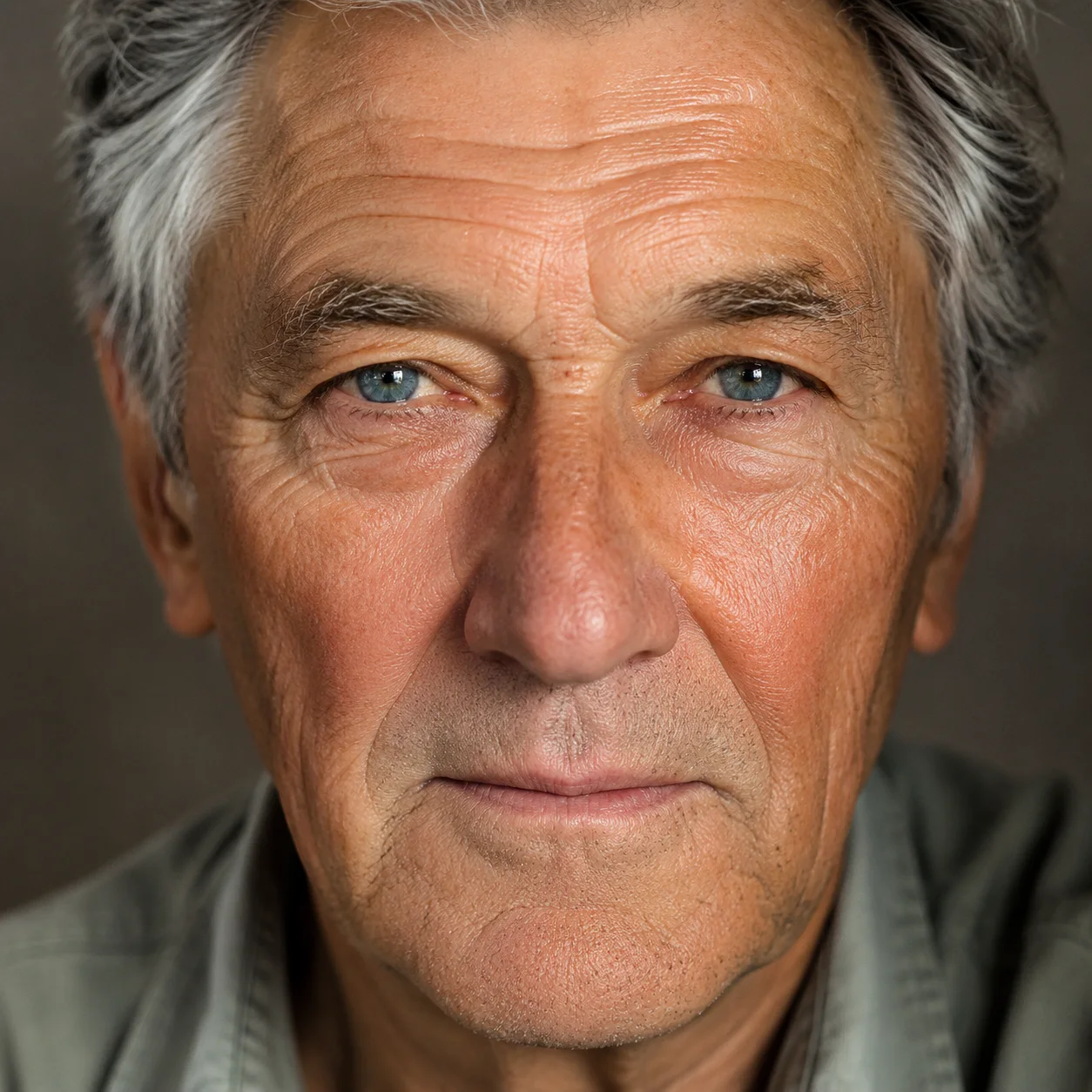
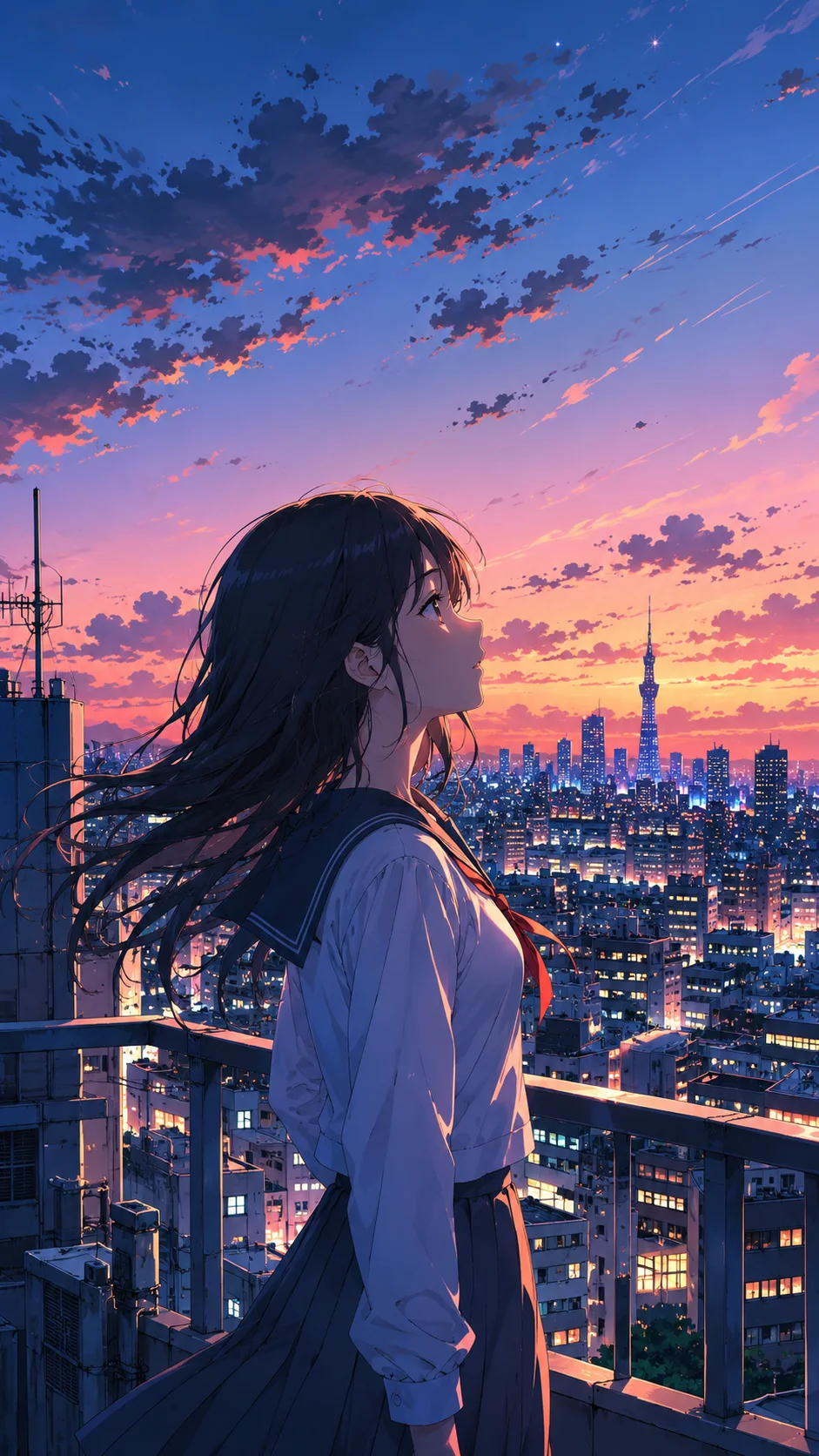
Image & Text to Video
Animate any photo or prompt into a cinematic clip.
Face Swap
Swap a face into any photo in seconds. Upload a base picture and the face you want, and SnapVivid blends them naturally — matched skin tone, lighting, and angle, with realistic, download-ready results.

AI Image Upscaler
Enlarge and sharpen any image without the blur. SnapVivid’s AI upscaler adds real detail as it scales your photo 2× or 4× — cleaning up noise and softness so small or low-res pictures become crisp and print-ready.
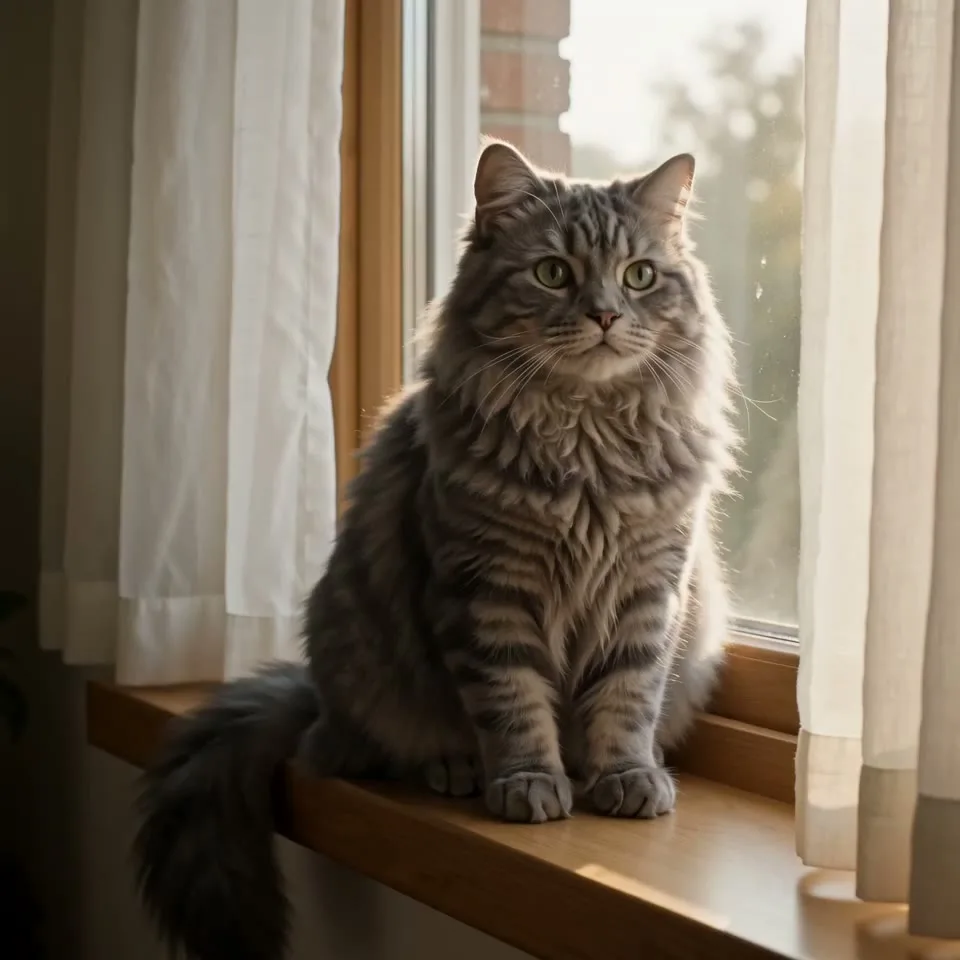
AI Image Generator
Generate and edit images in any style.
Kling 3.0 AI Video Generator
Run Kuaishou’s Kling 3.0 — SnapVivid’s model-branded video lane. Animate a photo into rich motion, or generate a high-fidelity video clip straight from text. Select Kling 3.0 in the model menu, write your prompt, and preview fluid motion and realistic physics — online, no waitlist.
Wan 3.0 AI Video Generator
Run Alibaba’s Wan 3.0 — SnapVivid’s elite video model. Animate any image with state-of-the-art physics, natural physical movements, and steady camera pans. Pick Wan 3.0 by name in the model menu, generate, and download a clean, watermark-free result — no waitlist, no complex setup.
Seedance AI Video Generator
Make video with Seedance 2.0 — the ByteDance model that powers SnapVivid’s default video engine. Animate a photo into motion or generate a clip from a text prompt, choose a length and aspect ratio, and download a clean, watermark-free result. No region gates, no scattered access — the fastest path to a Seedance clip.
AI Video Promo Maker
Turn your product photos or text prompts into stunning promotional videos in seconds. Generate high-quality promo clips with cinematic camera moves and realistic motion — all online, no watermark to preview.