Edit Color of Eyes with AI
See yourself with a new eye color before you commit. Upload a portrait, choose blue, green, hazel, or brown eyes, and let SnapVivid edit only the irises while your face, expression, skin, and lighting stay true. It is a realistic eye color changer built on Google’s Nano Banana edit model — free to try, private to your session, and clean to download.
Edit Color of Eyes with AI — real results, in minutes
Eye color is one of the smallest details in a portrait, but it changes the feeling of the whole face. That is why people search for a way to edit color of eyes before buying colored contacts, changing their hair, or committing to a character look. The old approach was a colored circle placed over the iris. It could look acceptable at thumbnail size, but the edges, reflections, and texture gave it away immediately. SnapVivid uses Google’s Nano Banana edit model to make the change inside the photo, so the result is a true eye color edit rather than a sticker.
Start for FreePrompt: H3-Max text-to-video: Bridge Lava Beast Heroine.
Why creators use Edit Color of Eyes with AI
Everything edit color of eyes with ai gives you in one place.
A realistic eye color editor, not a painted overlay
SnapVivid edits the irises inside your actual photo instead of placing a flat contact-lens sticker over the eyes. The new color follows the existing iris texture, pupils, catchlights, and shadows, so the result still looks like a real photograph.
Your face and expression stay exactly yours
The hardest part of an eye color edit is changing a tiny detail without changing the person. The Nano Banana workflow is prompted to preserve your face, eye shape, expression, skin, hair, makeup, and background while the eye color changes naturally.
Preview blue, green, hazel, or brown eyes
Start with a ready-made shade or describe a more specific result, such as cool gray-blue, olive green, golden hazel, or deep espresso brown. You can compare several versions from the same portrait before choosing a look.
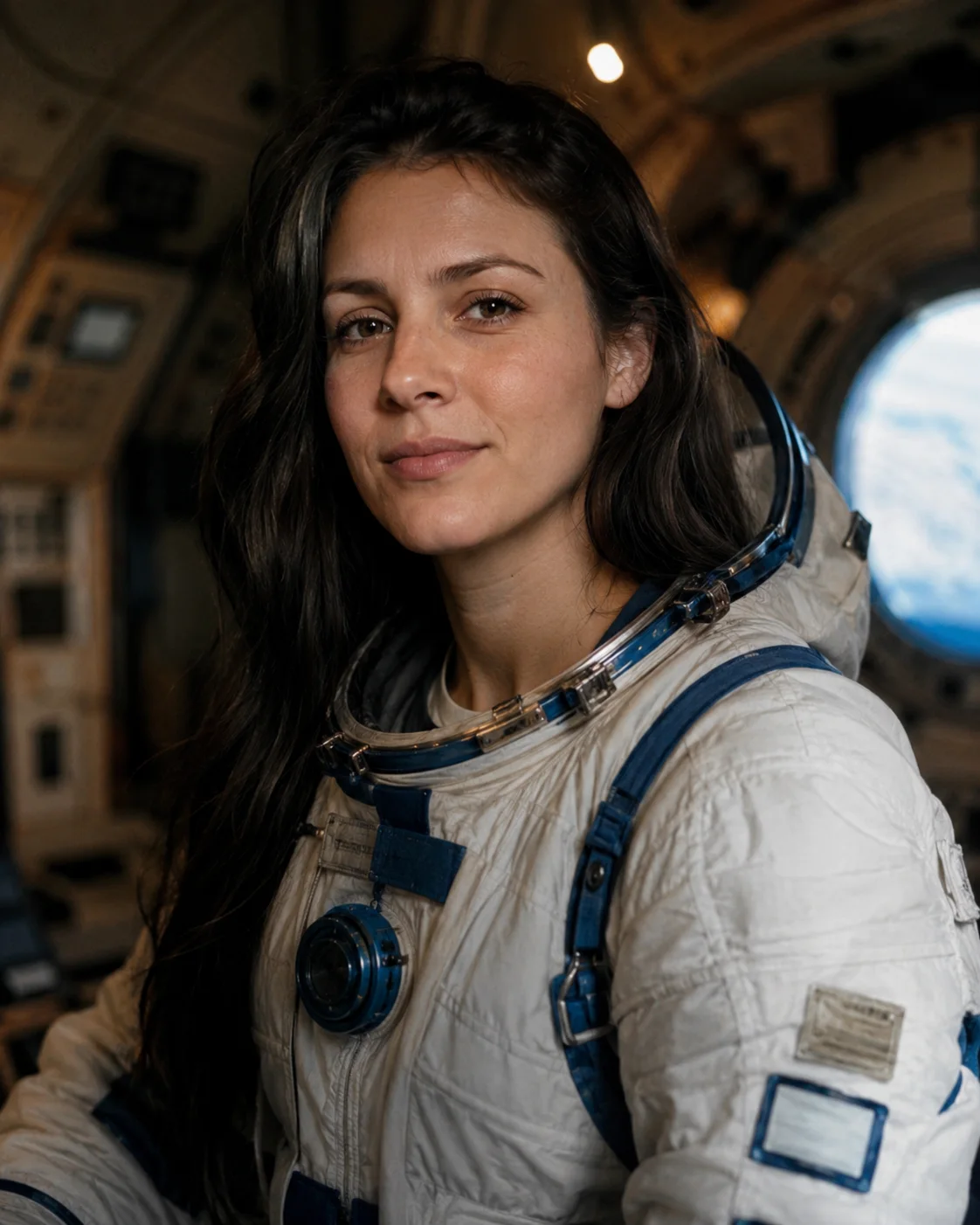
Experiment without a watermark on the preview
Use your 1 lifetime image credit to test different eye colors, and failed generations do not cost a credit. Your uploaded photo stays private to your session, previews are watermark-free, and the image you keep downloads at full quality.
Edit Color of Eyes with AI — specs
What Edit Color of Eyes with AI runs on and what you get.
| Model | Google Nano Banana (google/nano-banana-edit) |
|---|---|
| Type | Prompt-based image-to-image eye color editing |
| Input | One portrait or photo with visible eyes |
| Edit scope | Iris color with face and expression preserved |
| Presets | Blue, green, hazel, and brown |
| Output | Watermark-free image, full-quality download |
| Access | Free — 1 lifetime image credit, no card required |
How it works
Three steps from upload to a finished, download-ready result.
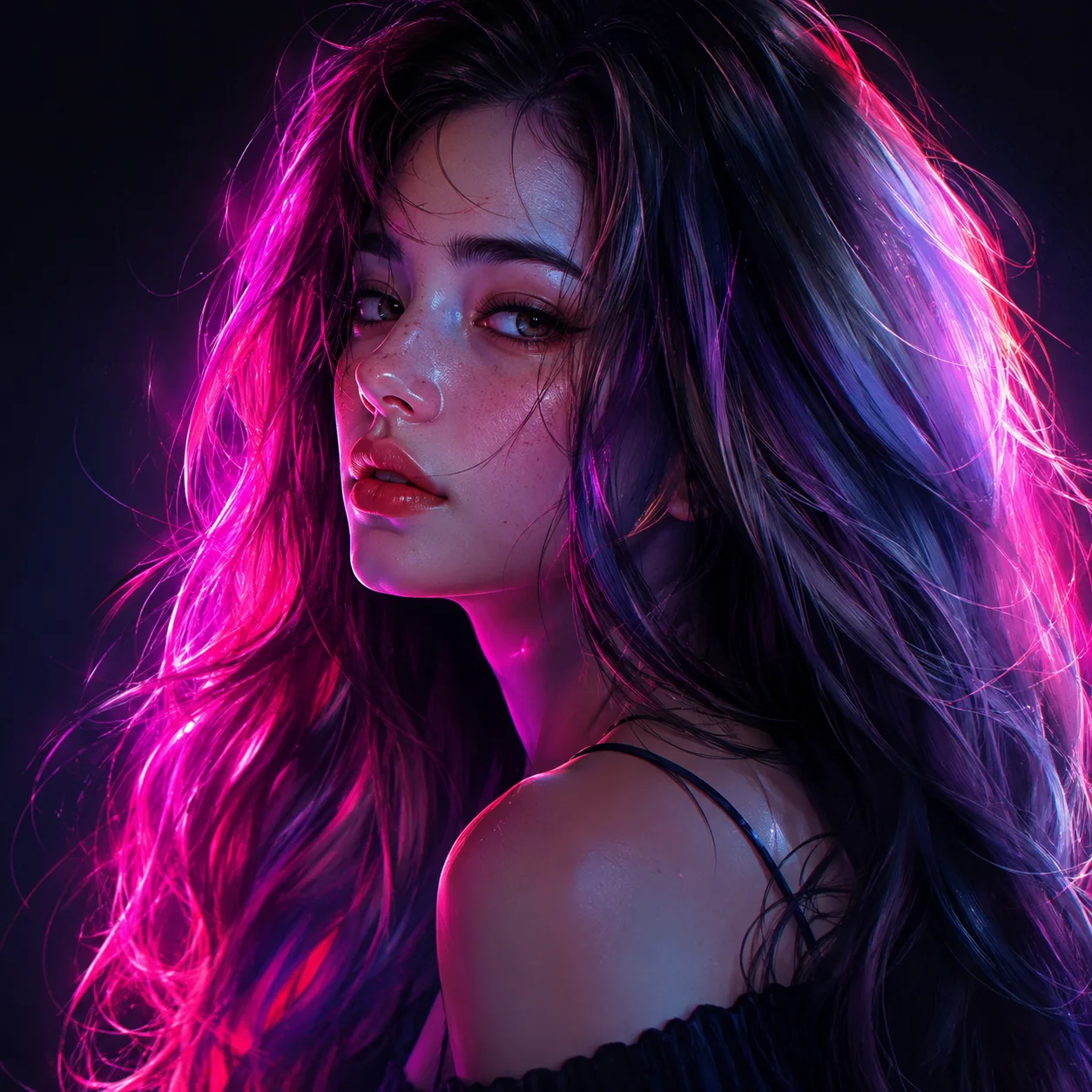
Upload a clear portrait
Add a front-facing photo where both eyes are visible and reasonably sharp. A well-lit portrait gives the eye color editor enough iris detail to make a natural change.
Describe the color
Pick a preset such as blue, green, hazel, or brown, or write your own instruction. Ask it to change only the irises and keep your face, expression, and lighting unchanged.
Compare and download
Generate a preview, compare the new shade with your original, refine the prompt if needed, and download the watermark-free result when the color looks right.
Made with SnapVivid
Real results — edit color of eyes with ai across styles and subjects.
Edit Color of Eyes with AI — free to start
1 lifetime image credit, no card required. Video runs on a paid plan from $29/month.
Start for FreeWhat you can do with it
Practical and playful reasons to try a different eye color before committing to it.
Preview contact lens colors
Test a new lens shade on your own face before ordering, from a subtle natural brown to a brighter blue or green.
Plan a hair or makeup look
See how a proposed eye color works with a new hair color, makeup palette, or wardrobe while keeping the rest of your portrait consistent.
Create a character reference
Give a fictional character a consistent eye color across portrait variations without redrawing the face or losing the original expression.
Make a polished profile portrait
Correct a dull or uneven eye color in a headshot with a restrained, realistic edit that still looks like the original photo.
More about Edit Color of Eyes with AI
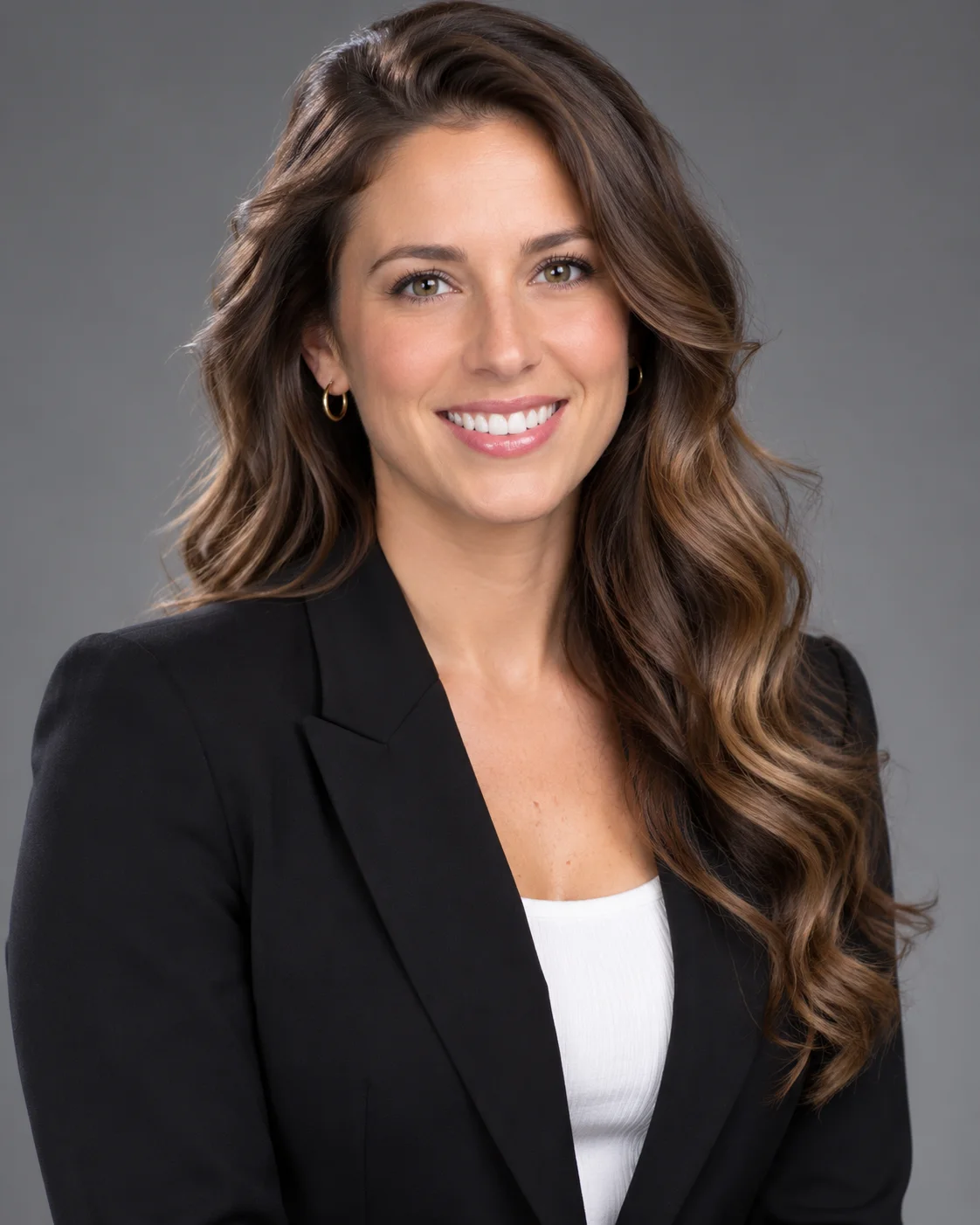
The goal is controlled editing. Upload a portrait and describe the shade you want — blue, green, hazel, brown, gray, or something more specific. The preset tells the model to change only the irises while preserving the person’s face, pupils, eye shape, catchlights, expression, skin, hair, makeup, and background. That matters because an eye color changer is useful only when the rest of the image remains trustworthy. You should be comparing a new eye color on your face, not comparing a new face with a different pair of eyes.
Natural results depend on more than the hue. Real irises have radial texture, darker rings, uneven color, and reflections from the light source. A convincing edit keeps those visual cues and blends the new shade with the existing exposure and shadows. Start with one of the ready-made examples if you want a fast comparison, then add a detail such as “soft golden ring” or “cool gray-blue with natural brown flecks” when you want to explore further. The same workflow lets you edit the color of eyes in a selfie, a headshot, or a character reference.
SnapVivid is also useful when you are deciding, not just when you are making an image. Try several contact-lens shades before you order, check whether green eyes work with a new hair color, or create a believable character sheet with a fixed eye color across multiple portraits. Each run starts from your uploaded photo, and failed runs never cost a credit. Your source remains private to the session, and previews do not carry a watermark.
When the eye color looks right, download the clean image or continue in the wider creation studio. You can retouch the portrait with the AI photo editor, upscale it for a sharper print, combine it with another image, or animate the final still into a short clip. For a focused edit color of eyes task, though, the path stays simple: one portrait, one precise instruction, and a result that still looks like you.
Related tools
More SnapVivid tools that pair with edit color of eyes with ai.

AI Photo Editor
Edit any photo just by describing the change. Upload a picture, tell SnapVivid’s AI what to do — swap the background, remove an object, fix the lighting, or restyle the whole shot — and get a clean, download-ready result. When you need a focused edit, the specific tools are one click away.
Face Swap
Swap a face into any photo in seconds. Upload a base picture and the face you want, and SnapVivid blends them naturally — matched skin tone, lighting, and angle, with realistic, download-ready results.
AI Image Upscaler
Enlarge and sharpen any image without the blur. SnapVivid’s AI upscaler adds real detail as it scales your photo 2× or 4× — cleaning up noise and softness so small or low-res pictures become crisp and print-ready.
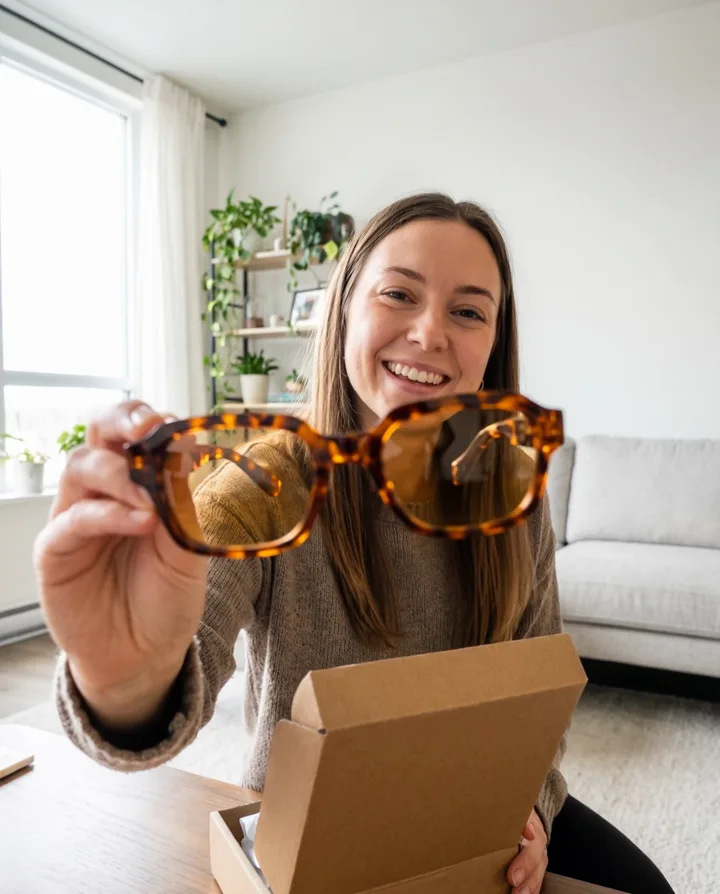
Combine Images
Combine images into one natural, believable photo — no Photoshop layers, no masking. Upload two pictures (or more), describe how to merge them, and SnapVivid blends the photos together with matched lighting, scale, and perspective.

Nano Banana AI Image Generator
Run Google’s Nano Banana — SnapVivid’s built-in default image model. Generate an image from a text prompt, or upload a photo and edit it while the subject stays perfectly consistent, the thing it’s known for. Pick Nano Banana by name in the model menu, generate, and download a clean, watermark-free result — no scattered demos, no waitlist.
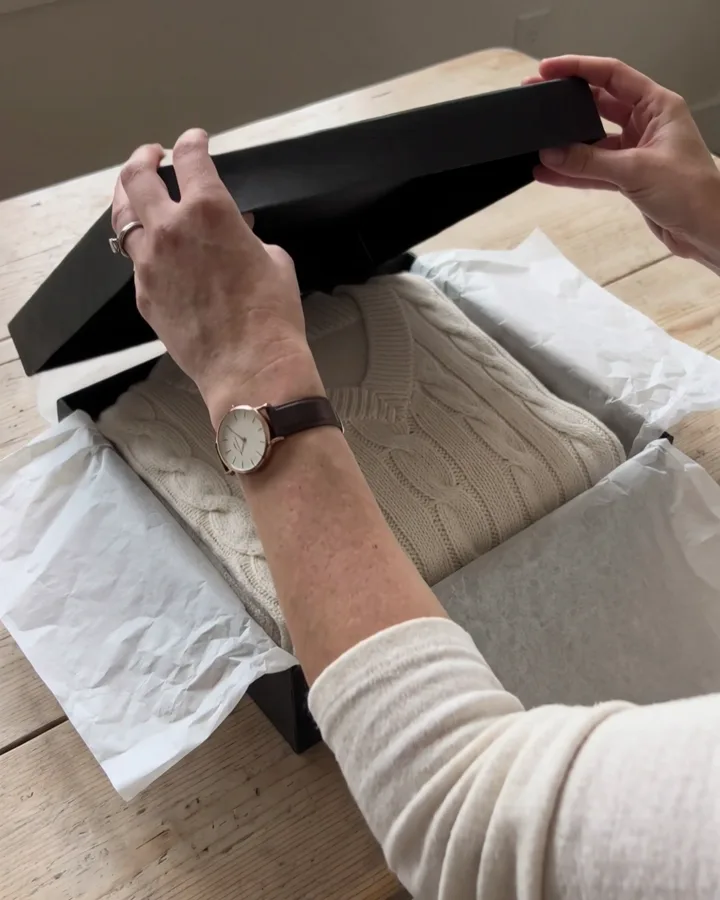
AI Image Generator
Generate and edit images in any style.
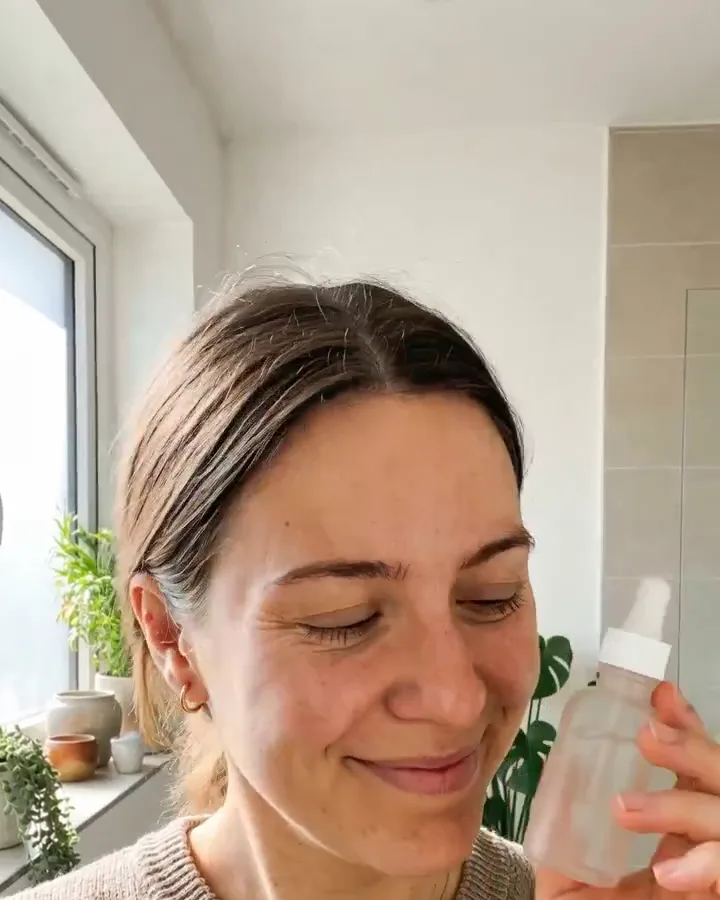
AI Buzz Cut Filter & Haircut Trial
Curious about a buzz cut, a short haircut filter, or even a bald filter? SnapVivid’s AI-powered hairstyle filter lets you try on a buzz cut, bangs filter, or haircut filter on your photo instantly. Your face stays perfectly the same — no weird overlays, no watermarks. Each edit uses credits, and the credit cost is shown before you generate.
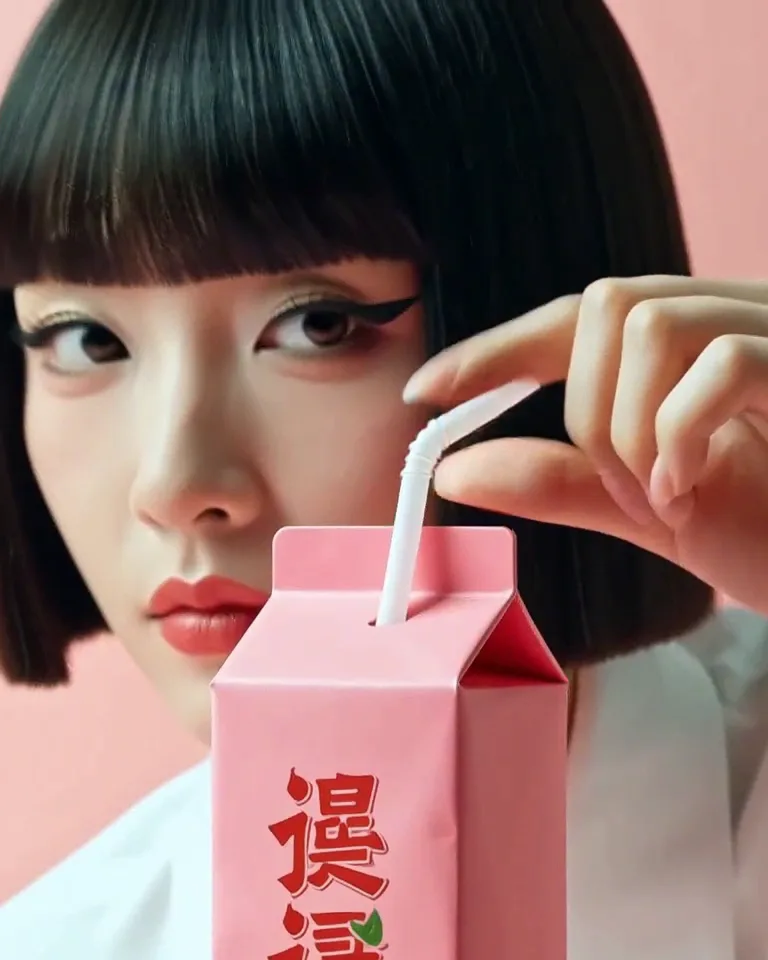
Image & Text to Video
Animate any photo or prompt into a cinematic clip.